
Learn one feature at a time
A random page of the ORGanizer documentation, so you pick up something new without reading all of it at once.
ORGs
An ORG configuration gives one Salesforce organization a label and a colour. Every browser tab logged into that ORG then carries that title and a matching favicon — which is what stops you from running a data fix in production because it looked like the sandbox.

Changed in 1.0
The popup's ORGs tab is now purely a switcher for the ORGs you are logged into right now. The full list of ORG configurations — including ORGs with no open session — moved to the ORGs tab of the Options page, where entries can be created by hand, filtered and deleted in bulk.
In the popup: the ORGs you are logged into
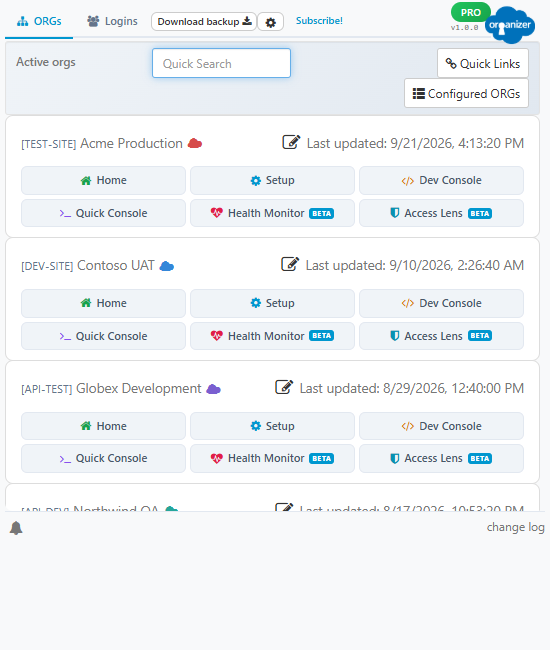
Open it with CTRL + SHIFT + O. Every ORG with a live session in the browser is listed, with six actions:
Home · Setup · Developer Console
The three Salesforce destinations, opened in a new tab on that ORG's session.
Quick Console tool
Opens the Quick Console in its own tab, already bound to that ORG.
Health Monitor tool
Opens the ORG health dashboard for that ORG.
Access Lens tool
Opens the permission explorer for that ORG.
The pencil next to a live ORG edits just its label and colour, in a modal. The ORG Id is shown read-only, with an icon that takes you to the full editor in the Options page; a Configured ORGs button at the bottom of the tab does the same.
In the Options page: every ORG you configured
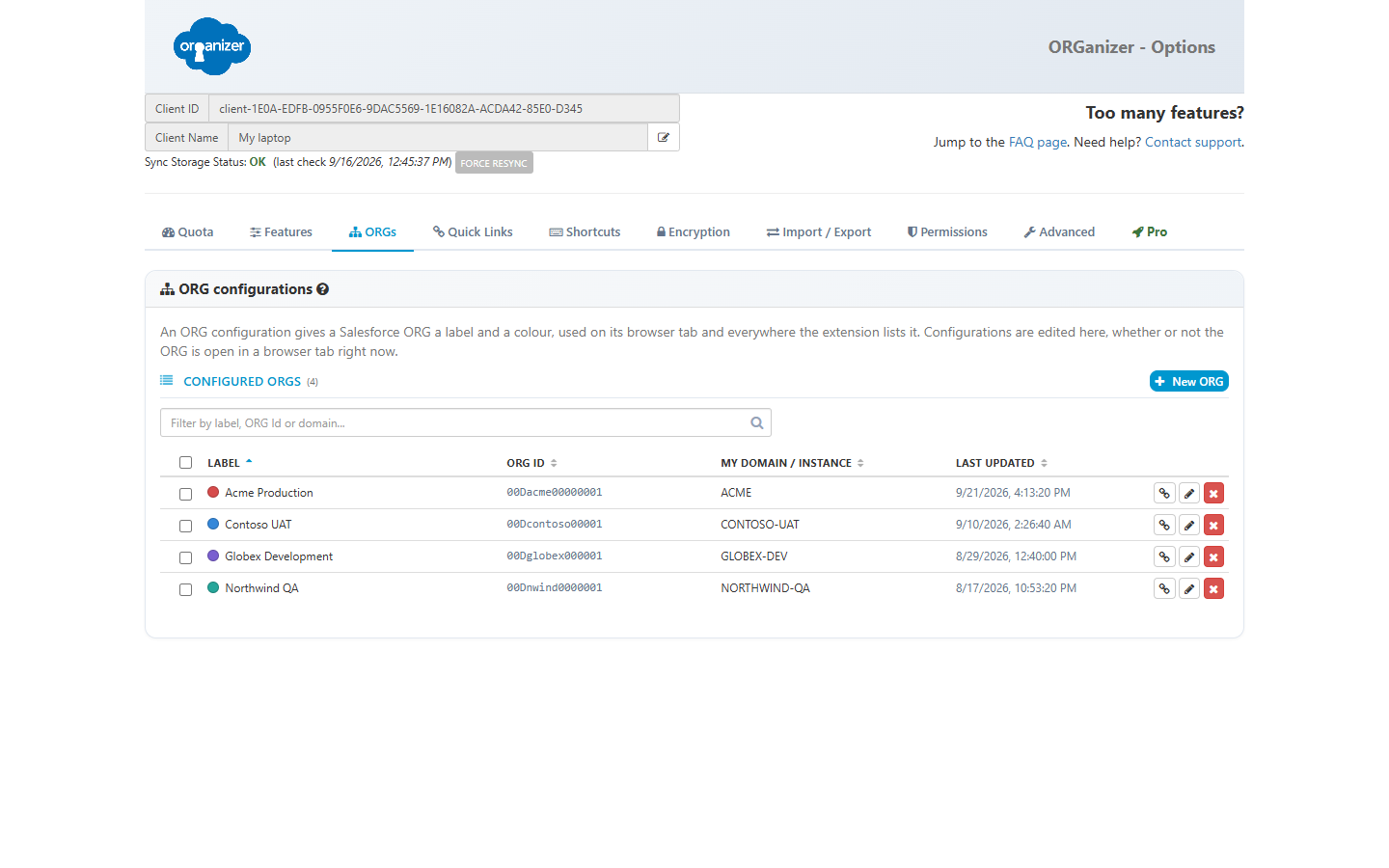
Options → ORGs holds the real list. Every field is editable whether or not the ORG has a live session, so you can prepare a configuration before ever logging in.
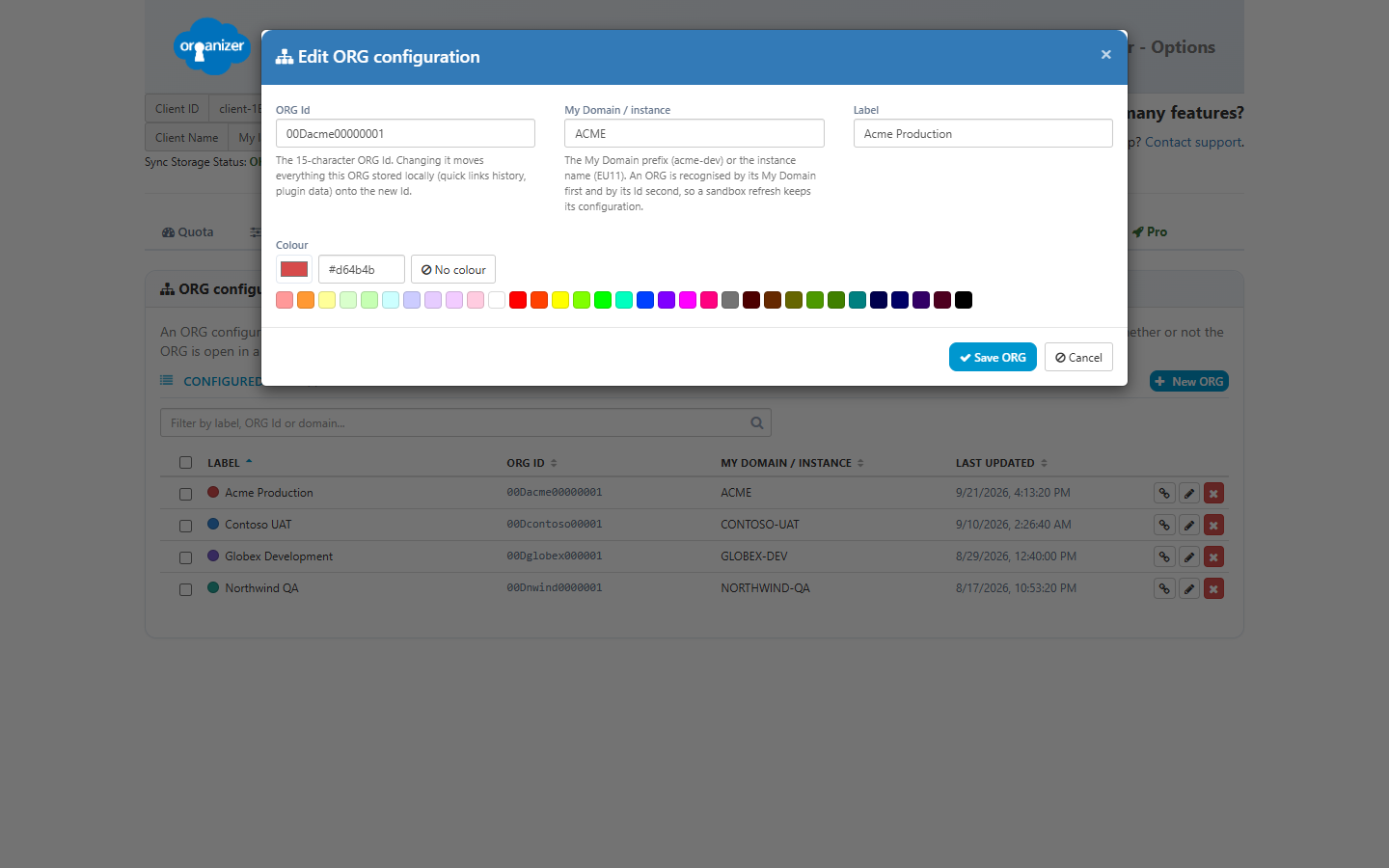
ORG Id
The 15-character Salesforce organization Id. It must be unique across the list.
My Domain
The My Domain prefix in uppercase (or the legacy instance name). This is what the ORG is matched on first.
Label
The tab title.
Colour
The favicon colour, as #rrggbb.
The list also gives you a filter box, a checkbox per row and a header checkbox, so a batch of ORGs can be deleted in one confirmation.
Sandbox refreshes
An ORG is matched by its My Domain first and its ORG Id second. A sandbox refresh keeps the domain and changes the Id, so the configuration survives it and the new Id is written back automatically — you do not have to reconfigure the sandbox after every refresh.
Changing an ORG Id moves that ORG's local data (quick link history, plugin storage) to the new Id, and deleting an ORG purges it. Configured quick links are deliberately left alone.
All ORG configurations are synced. There is no way to keep one local only. After saving, an open tab can take up to ten seconds to pick up the new icon and title.
Removed in 1.0
Quick links are no longer edited inside the ORG panel, and the per-ORG Import/Export button is gone. Quick links now live in one list with their own tab in the Options page — see Quick Links. Existing per-ORG links are migrated automatically the first time the new build runs, and the migration re-runs safely if an older device syncs its old list back in.
The pencil on a row opens the editor, where the four fields above are set:
Show me another one