
ORGanizer for Salesforce
Everything the extension does, feature by feature — current as of version 1.0. Deep links are stable: every heading has its own address.
Version 1.0
This documentation covers version 1.0, the first release out of beta. New in this release: Health Monitor, Access Lens, Field History Helper 2.0, the Quick Console in its own tab, the Field Usage plugin, rebuilt encryption, per-ORG domain permissions, Quick Login on the email-based login flow, and Quick Links and ORG configurations that now live in the Options page.
Removed in 1.0:
Google Drive backup ·
the ORGanizer Connector integration ·
Timed Password Sessions ·
the in-popup News tab ·
the @login command in Quick Links.
Full change log →
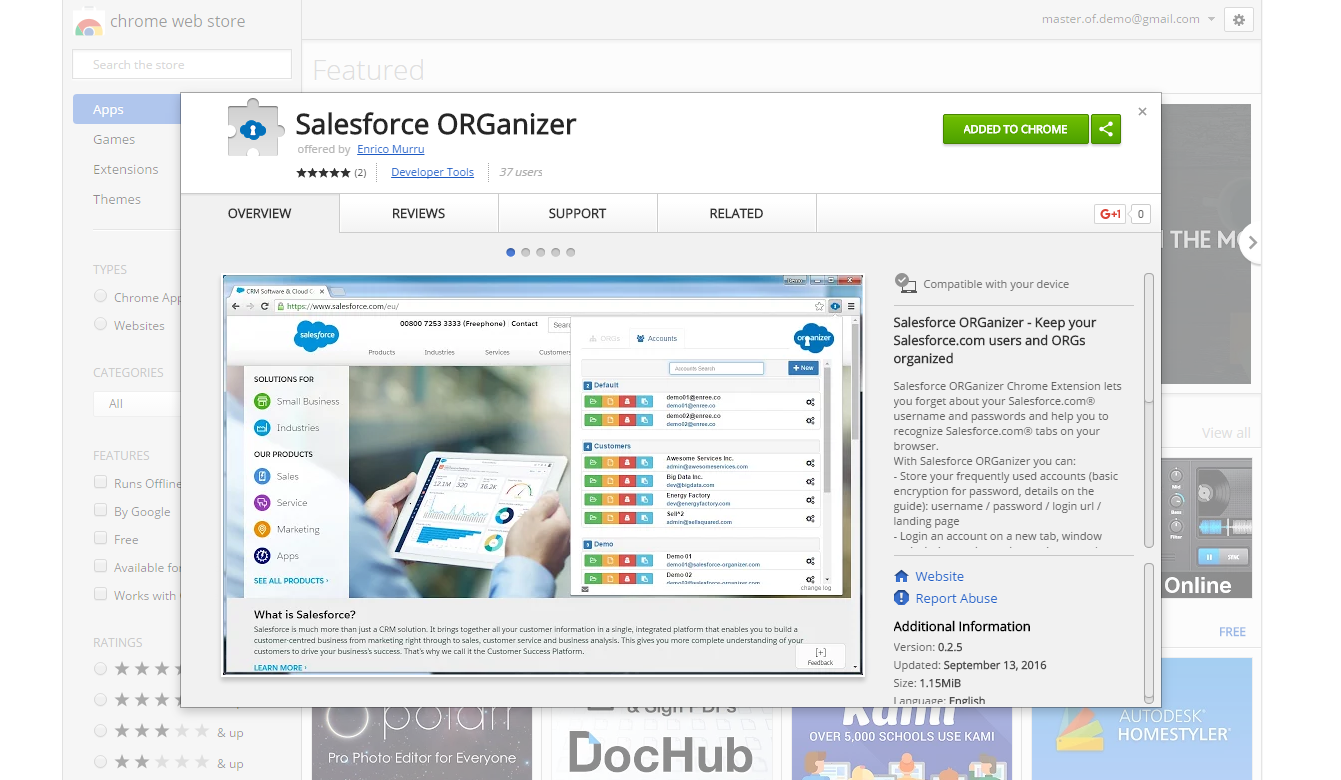
Install it
ORGanizer exists to take the repetitive work out of a Salesforce admin's or developer's day:
- logging in to a long list of ORGs;
- telling apart the ORGs you already have open;
- reaching a frequently used setup page in one keystroke;
- running a query or a piece of Apex without opening the Developer Console;
- checking the health of an ORG, and who has access to what.
The same build runs on Chrome, Firefox and Microsoft Edge — and on any other browser that installs from those stores, Opera and the other Chromium-based ones included. Pick yours:
 Chrome
 Web Store
Chrome
Chrome Web Store
 Firefox
Mozilla Add-ons
Firefox
Mozilla Add-ons
 Edge
Microsoft Add-ons
Edge
Microsoft Add-ons
Opening the popup
Once installed, click the new icon in the browser toolbar:
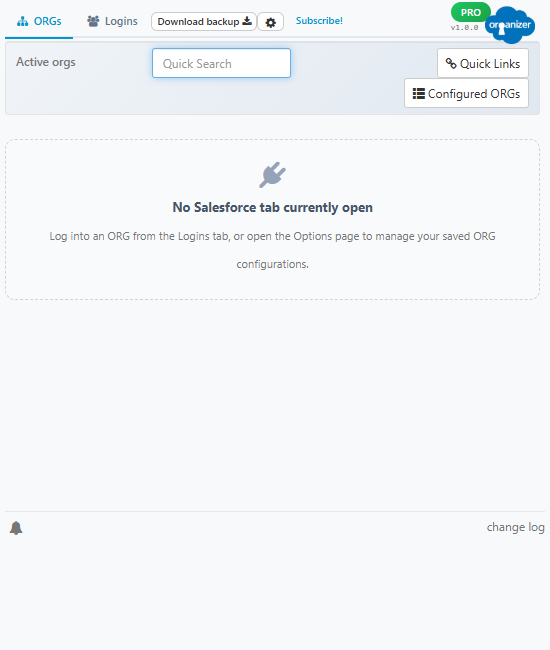
Or use the keyboard: CTRL + SHIFT + K (CMD + SHIFT + K on macOS).
On Firefox
Firefox already owns CTRL + SHIFT + K for its Web Console, so a shortcut set there would silently do nothing. ORGanizer therefore remaps its own shortcut once, the first time it runs on Firefox, and then leaves it to you — whatever you set afterwards is kept.
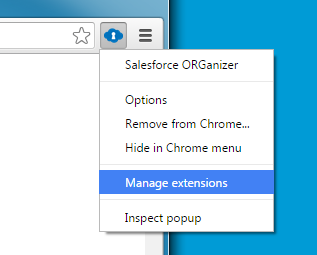
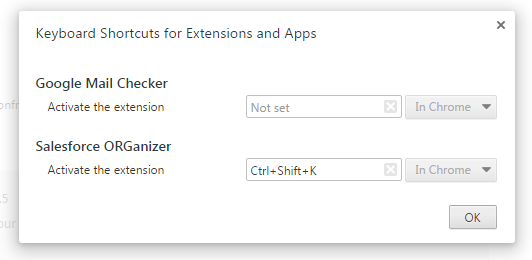
The browser-level shortcut can conflict with another extension. To change it, right-click the extension icon and choose Manage Extensions:
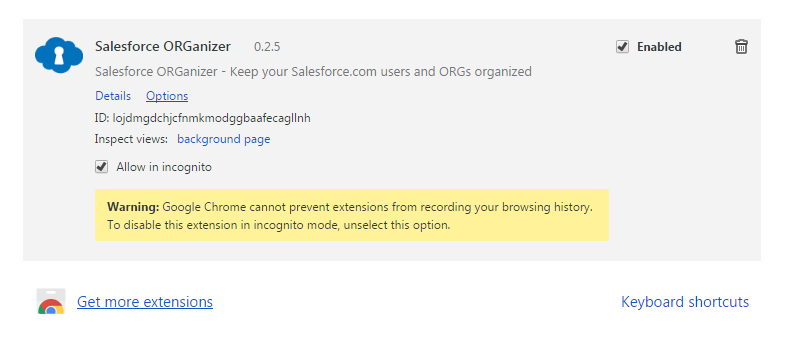
Scroll to the bottom of the page and open Keyboard shortcuts:
… then type the combination you prefer:
First run: granting access to your ORGs
New in 1.0
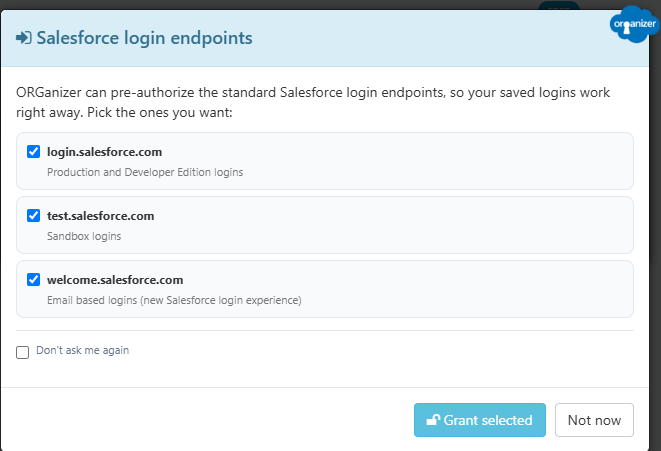
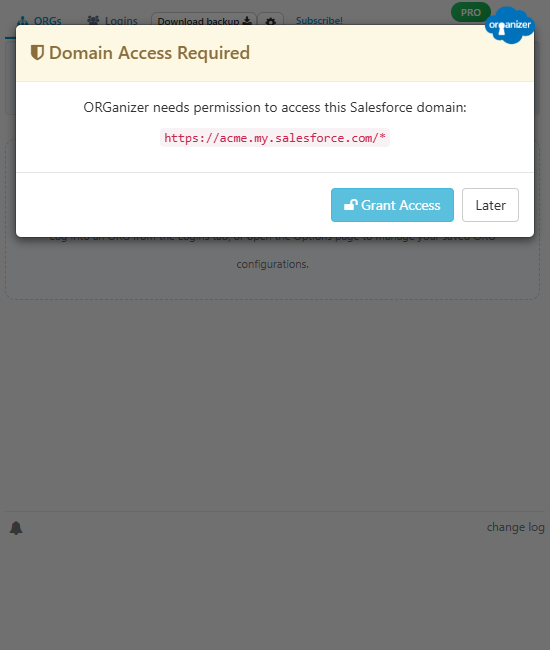
ORGanizer no longer asks for access to all Salesforce domains when you install it. It starts with no ORG access at all and asks for one ORG's domains at a time, the first time you open that ORG. Until you grant them, the ORGanizer button, Quick Links and the console tools do not appear on that ORG's pages. See Domain permissions for the whole picture.
Logins
The Logins tab lists the Salesforce users you have stored (logins here means Salesforce users, not ORGs). Open it with CTRL + SHIFT + A — see the Options page to change any shortcut.
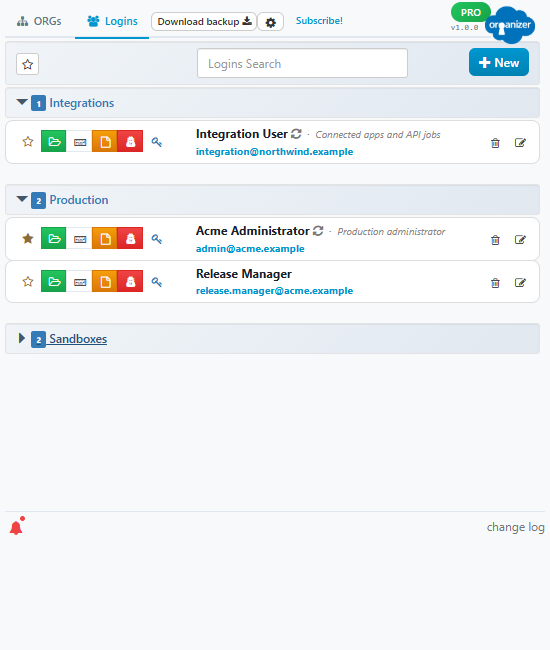
From this panel you can:
- reorder groups by dragging the group panels up and down;
- reorder logins inside a group by dragging them;
- search with the quick search box (CTRL + F);
- create, edit and delete a login;
- star a login to keep it at the top.
Creating and editing a login
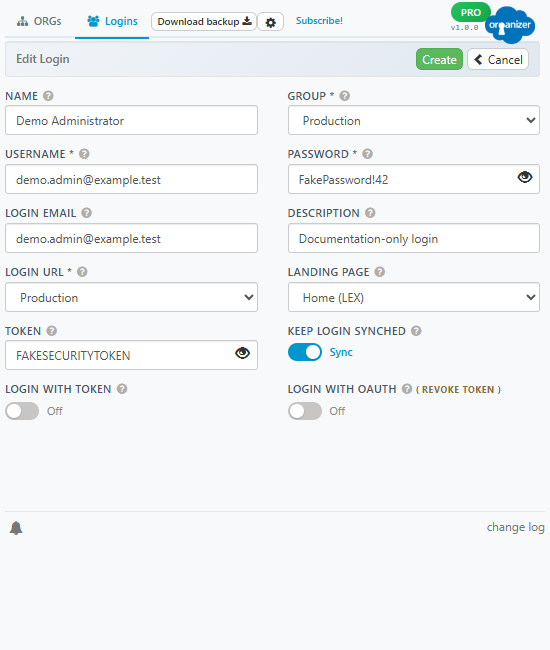
Use the New button, or the pencil next to an existing login. CTRL + SHIFT + C opens the creation panel directly.
Name
A readable label for the login.
Group required
Logins live in collapsible groups. The picklist offers every group in use plus -- New Group --.
Username required
The Salesforce username.
Password required
The Salesforce password. The eye icon reveals it; with encryption enabled you are asked for your master password first.
Login email
Optional. The email address the Salesforce user signs in with. Fill it in and the login
is also offered on Salesforce's email-based login flow
(welcome.salesforce.com), which asks for an email address instead of the
ORG username. Left empty, the login is only offered on the classic login page. Stored
as typed — it is not encrypted.
Description
Optional. A note to yourself — which sandbox this is, who the user belongs to, when it expires. It is shown under the login in the Logins tab and in Quick Login, and the quick search matches on it in both. Stored as typed and never sent to Salesforce.
Login URL required
Production, sandbox, developer, or a custom My Domain URL (for example https://mydomain.my.salesforce.com).
Landing Page
Where to land after login: Home, Setup, or a custom path.
Token
The user's security token. Stored encrypted, exactly like the password.
Login with token
Log in through the SOAP API using the token above, which avoids the email verification
code when logging in from an untrusted location. The user needs API Enabled.
Heads up: Salesforce is progressively retiring SOAP-based
username-password login, and some ORGs have it disabled already. If this option stops
working on an ORG, that is why — use a normal login or
Login with OAuth instead.
Login with OAuth
Authorise the browser once, then log in without storing the password at all. The refresh token is kept locally and can be revoked from the login editor.
Keep account synced
Set to Sync to keep the login in the browser's sync storage, so it follows you to every browser profile signed into the same account.
Opening a login

- New tab
- New tab with Developer Console
- New window
- Incognito / private window (has to be enabled for the extension first)
- Show password and security token — for signing in from an external client
New in 1.0
Show password and security token now opens a small dialog with the username, the password and the token, each with its own copy button plus a “copy both” shortcut. With encryption enabled you are asked for your master password before anything is revealed. The old Copy access link action is gone: Salesforce disabled the one-shot session links it relied on back in Winter '22.
Clicking the username copies it to the clipboard.
To allow incognito mode, open your browser's extensions page
(chrome://extensions, edge://extensions or
about:addons) and enable it for ORGanizer:
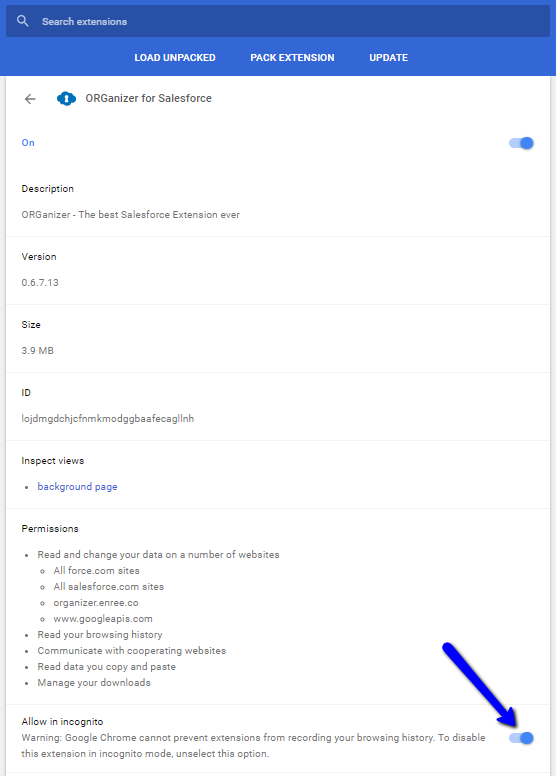
OAuth and private windows. The OAuth authorisation flow has to be started from a normal window, because extension pages are not reachable from a private one. Once the browser is authorised, private-window logins work.
To delete a login, open it with the pencil and use the Delete button:
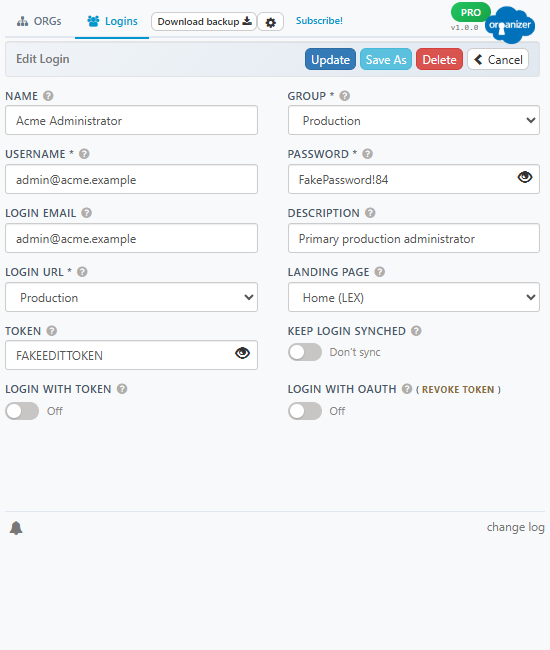
Save as stores the login currently being edited as a new one.
ORGs
An ORG configuration gives one Salesforce organization a label and a colour. Every browser tab logged into that ORG then carries that title and a matching favicon — which is what stops you from running a data fix in production because it looked like the sandbox.

Changed in 1.0
The popup's ORGs tab is now purely a switcher for the ORGs you are logged into right now. The full list of ORG configurations — including ORGs with no open session — moved to the ORGs tab of the Options page, where entries can be created by hand, filtered and deleted in bulk.
In the popup: the ORGs you are logged into
Open it with CTRL + SHIFT + O. Every ORG with a live session in the browser is listed, with six actions:
Home · Setup · Developer Console
The three Salesforce destinations, opened in a new tab on that ORG's session.
Quick Console tool
Opens the Quick Console in its own tab, already bound to that ORG.
Health Monitor tool
Opens the ORG health dashboard for that ORG.
Access Lens tool
Opens the permission explorer for that ORG.
The pencil next to a live ORG edits just its label and colour, in a modal. The ORG Id is shown read-only, with an icon that takes you to the full editor in the Options page; a Configured ORGs button at the bottom of the tab does the same.
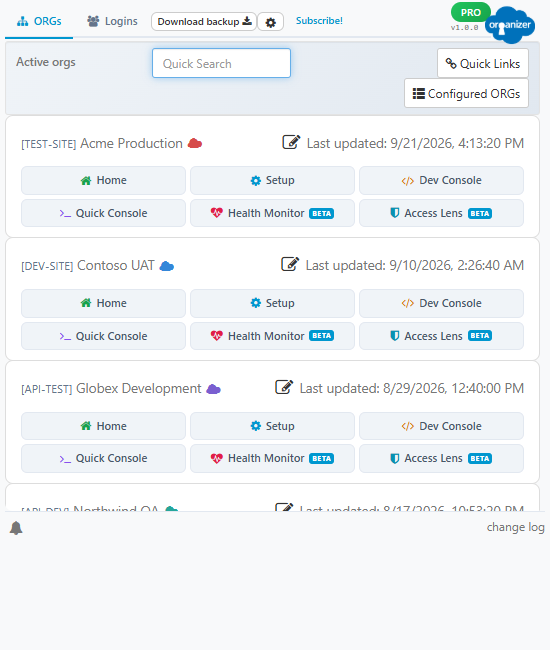
In the Options page: every ORG you configured
Options → ORGs holds the real list. Every field is editable whether or not the ORG has a live session, so you can prepare a configuration before ever logging in.
ORG Id
The 15-character Salesforce organization Id. It must be unique across the list.
My Domain
The My Domain prefix in uppercase (or the legacy instance name). This is what the ORG is matched on first.
Label
The tab title.
Colour
The favicon colour, as #rrggbb.
The list also gives you a filter box, a checkbox per row and a header checkbox, so a batch of ORGs can be deleted in one confirmation.
Sandbox refreshes
An ORG is matched by its My Domain first and its ORG Id second. A sandbox refresh keeps the domain and changes the Id, so the configuration survives it and the new Id is written back automatically — you do not have to reconfigure the sandbox after every refresh.
Changing an ORG Id moves that ORG's local data (quick link history, plugin storage) to the new Id, and deleting an ORG purges it. Configured quick links are deliberately left alone.
All ORG configurations are synced. There is no way to keep one local only. After saving, an open tab can take up to ten seconds to pick up the new icon and title.
Removed in 1.0
Quick links are no longer edited inside the ORG panel, and the per-ORG Import/Export button is gone. Quick links now live in one list with their own tab in the Options page — see Quick Links. Existing per-ORG links are migrated automatically the first time the new build runs, and the migration re-runs safely if an older device syncs its old list back in.
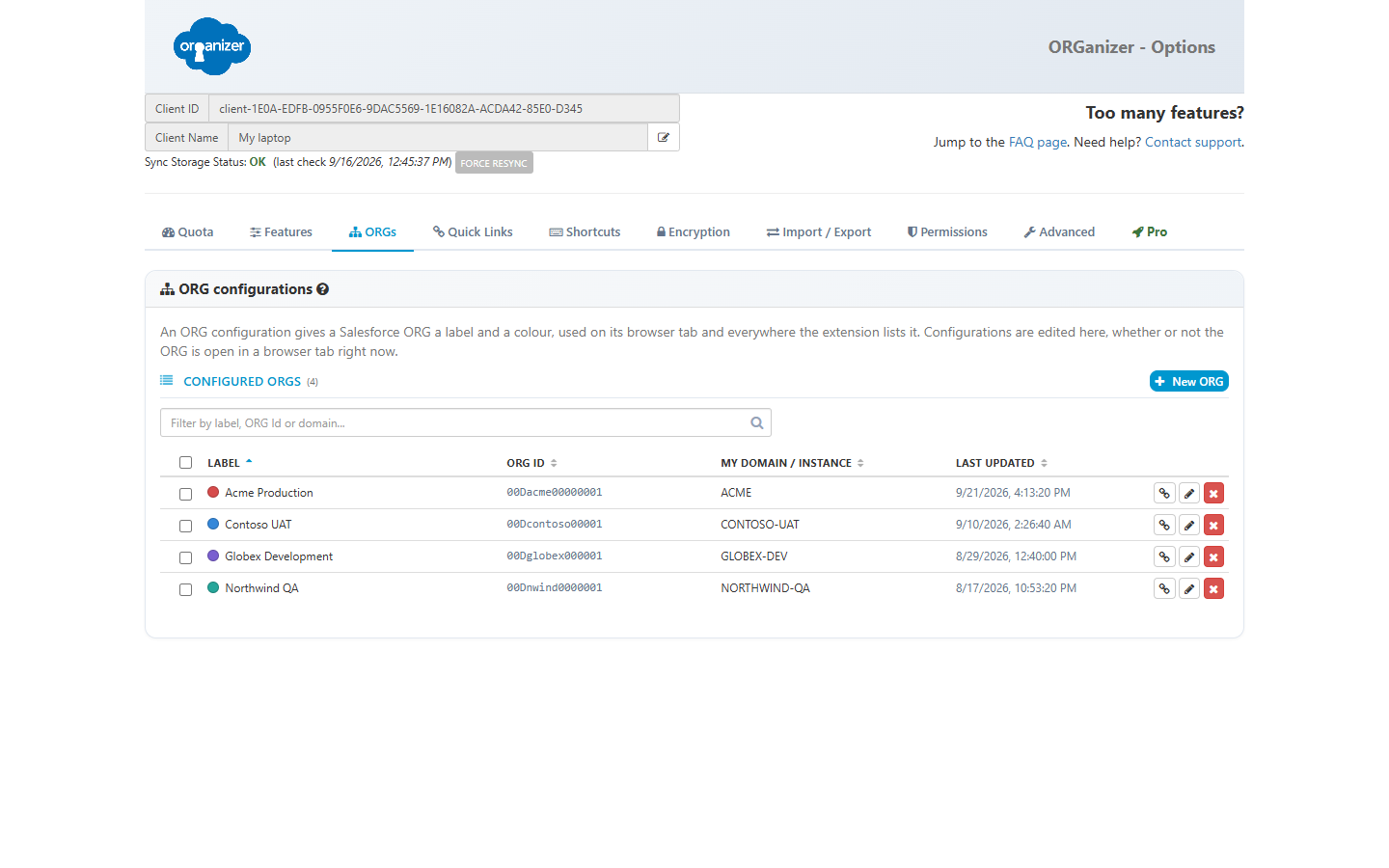
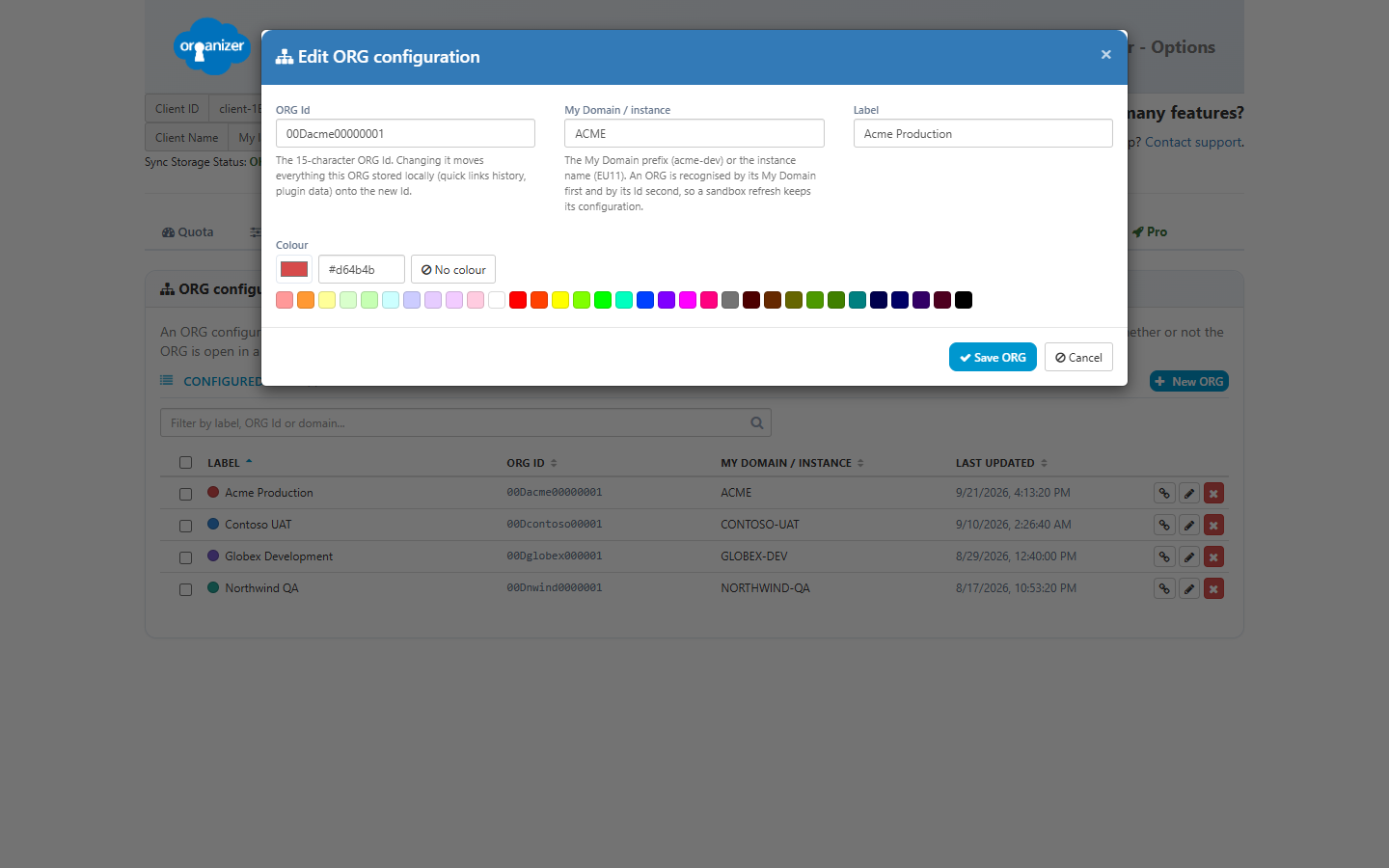
The pencil on a row opens the editor, where the four fields above are set:
Domain permissions
Rebuilt in 1.0
ORGanizer used to ask, at install time, for access to every Salesforce domain in existence. It no longer does. It now ships with no Salesforce access at all and asks for one ORG's domains at a time, when you first open that ORG — and you can revoke any of them later.
Permissions granted at install time
| Permission | Why it is needed |
|---|---|
tabs | Read the tab a Salesforce page is in, so its title and favicon can be set, and open logins in new tabs or windows. |
cookies | Read the Salesforce session cookie of the ORGs you are logged into. This is how the popup knows which ORGs are active, and how the tools call the API as you. |
storage | Store your logins, ORG configurations, quick links and settings locally, and sync the ones you marked as synced. |
scripting | Inject the ORGanizer button, Quick Links and the console tools into the Salesforce pages you granted access to. |
activeTab | Act on the tab you are looking at when you trigger a shortcut or a popup action. |
downloads | Save the files the extension produces: backups, exports, query results, debug logs, Health Monitor reports. |
alarms | Schedule the periodic housekeeping the background worker does (licence refresh, log retention). |
Plus a small set of hosts, which are ORGanizer's own backend — never Salesforce:
https://api.organizer.solutions/*— licence validation and promo codes;https://organizer.solutions/*— this site, for the in-popup messages and the change log.
Dropped in 1.0
identity and identity.email (the Google sign-in used by the removed
Google Drive backup), clipboardRead, unlimitedStorage, the
googleapis.com host and the browsing-history access are all gone. The extension
no longer knows your Google identity or your email address.
Salesforce domains: optional, and per ORG
Salesforce domains are declared as optional host permissions. The declaration is
a broad wildcard, but that is only the ceiling of what ORGanizer may ever ask for — it is
never requested as such. What is actually requested is the specific set of origins belonging to
the ORG you just opened. For acme.my.salesforce.com, that is:
https://acme.my.salesforce.com/*
https://acme.lightning.force.com/*
https://acme.vf.force.com/*
https://acme.file.force.com/*
https://acme.my.salesforce-setup.com/*
Sandboxes, developer and scratch ORGs get the same set with their own partition segment
(.sandbox., .develop., .scratch.). All five are requested in
a single browser prompt, because each request needs its own click.
login.salesforce.com, test.salesforce.com and
welcome.salesforce.com — the last one serves the
email-based login flow — are not My Domains, so they are
separate origins. The popup offers to pre-authorise them the first time you use it —
without them a stored login cannot be opened until its ORG's own domain has been granted, which
makes for a confusing first run. You can decline, and tick don't ask again.
api.status.salesforce.com is optional too, and requested only when you open the
Health Monitor, which reads instance status from it.
Reviewing and revoking
Options → Permissions lists everything you granted, grouped by My Domain. Each group can be revoked on its own, and you can also grant a domain manually before visiting it. Revoking takes effect immediately: the content scripts are unregistered from those origins.
On Firefox
Firefox draws its permission prompt behind the extension popup, so a request fired from the popup would block on a dialog you cannot see. On Firefox, ORGanizer therefore hands the grant over to the Options page and closes the popup — the prompt then appears where you can answer it.
For the deeper security picture — threat model, cryptography, backend — see the Security Statement and the Privacy Policy.
Encryption
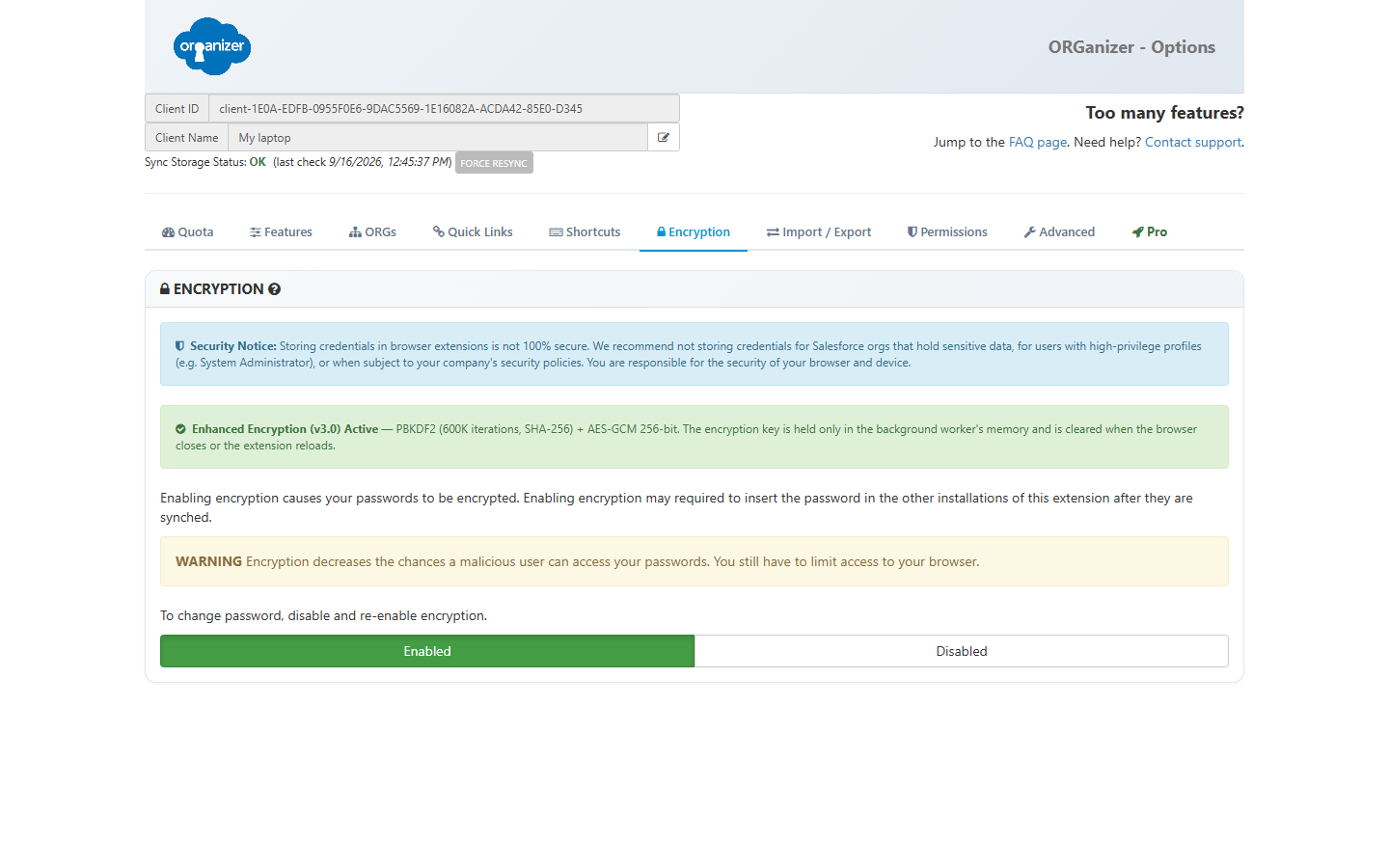
ORGanizer stores Salesforce passwords and security tokens. Encryption is what stands between those and anyone with access to your browser profile. Turn it on from Options → Encryption and pick a master password.
Read this before you store anything
ORGanizer is a productivity tool, not a certified password manager, and storing credentials was never the point of it — it is a convenience built around the logins you open twenty times a day. This is what the popup tells you as well: storing credentials in a browser extension is not 100% secure, and you are responsible for the security of your own browser.
So keep the line where it belongs. Use ORGanizer for the environments where a leak would be an inconvenience rather than an incident: scratch orgs, developer editions, sandboxes, the test users you rotate through. Production admin accounts, anything covered by an NDA and anything your company's security policy has an opinion about belong in the vault your organisation approved — not here.
With great power comes great responsibility. You are a power user: use the tools you have responsibly, inside your own rules of engagement and whatever you have signed.
Rebuilt in 1.0
The old scheme derived its key with a single MD5 pass and encrypted with unauthenticated AES-CBC. Version 1.0 replaces it end to end with the browser's own Web Crypto API.
| Before | 1.0 | |
|---|---|---|
| Key derivation | EvpKDF, MD5, one iteration | PBKDF2-SHA256, 600,000 iterations, 16-byte random salt |
| Encryption | AES-CBC, no authentication | AES-GCM 256-bit, fresh 12-byte IV per value, built-in authentication tag |
| Password verification | A reversible hash of the password | A one-way verifier: a known token, encrypted |
| Where the key lives | Encrypted, but on disk | In memory only, inside the background worker |
The consequence of that last row is the one you will notice: the derived key never leaves the background worker and is never written anywhere. When the browser closes, the extension reloads or the worker goes idle, the key is gone and ORGanizer asks for your master password again the next time it needs to decrypt something. Every password and token is encrypted individually, so one value can be revealed without unlocking the rest.
There is no recovery
Nobody — including the author of the extension — can recover your master password or decrypt your vault without it. Keep a copy somewhere safe, and take an export before you change it.
Migrating an existing vault
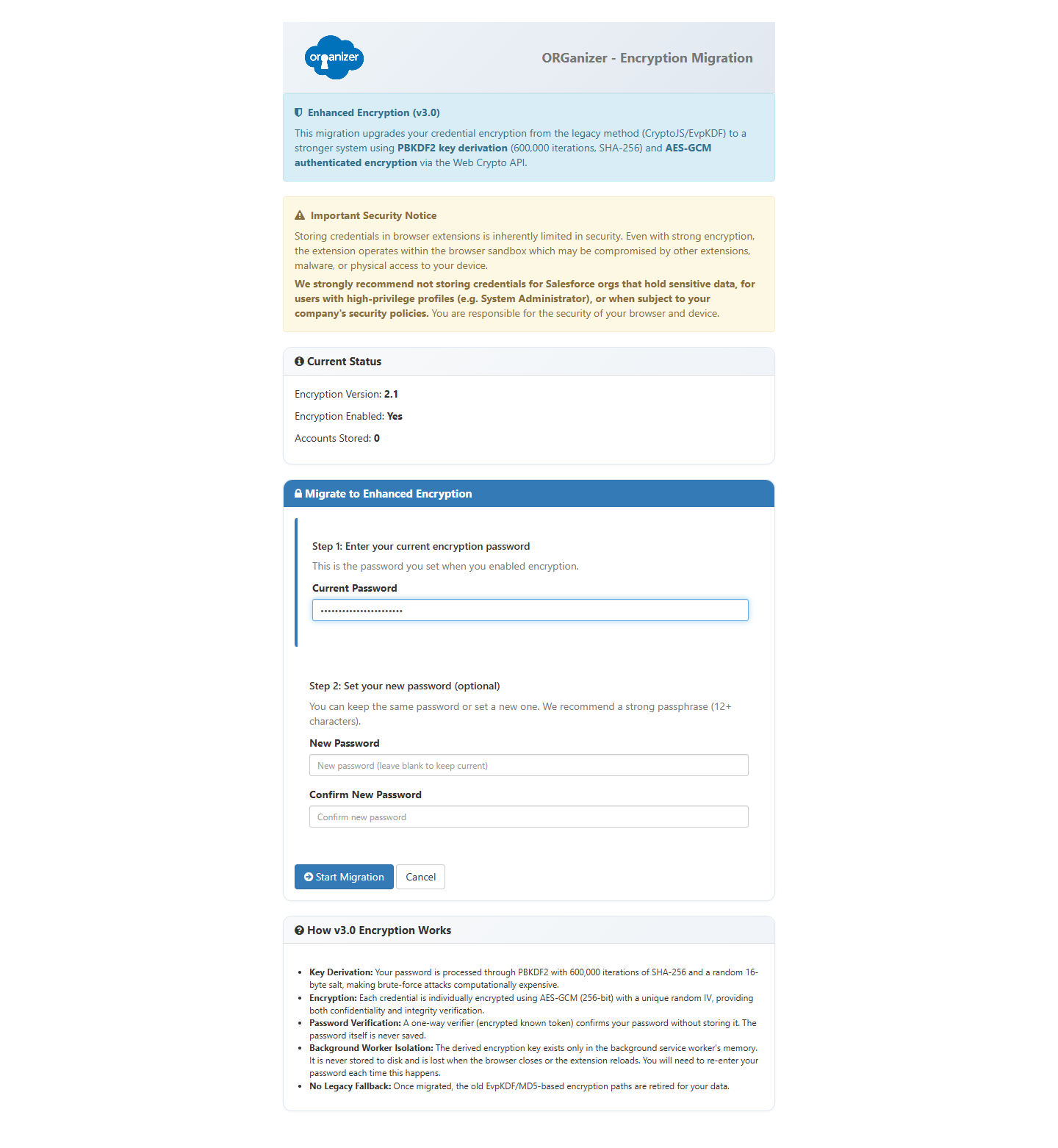
If you were already using encryption, the popup shows a banner pointing at a guided migration page. It re-encrypts your stored credentials with the new scheme after you enter your existing password. On a second device that syncs the migrated data, ORGanizer detects the new format and migrates the local copy automatically once you unlock it.
Mixed states are handled: a device still running an older build can keep working while another has already migrated, and nothing is overwritten in a way that would strand the other device.
Removed in 1.0
Timed Password Sessions are gone. They existed to keep a decrypted password usable for a set number of minutes; with the key now held only in the background worker's memory, the worker's own lifetime is the session, and a second timer on top of it would only have weakened the guarantee.
Quick Links
Quick Links is a command palette for Salesforce. Open it with CTRL + SHIFT + SPACE on any Salesforce page, or from the ORGanizer button:
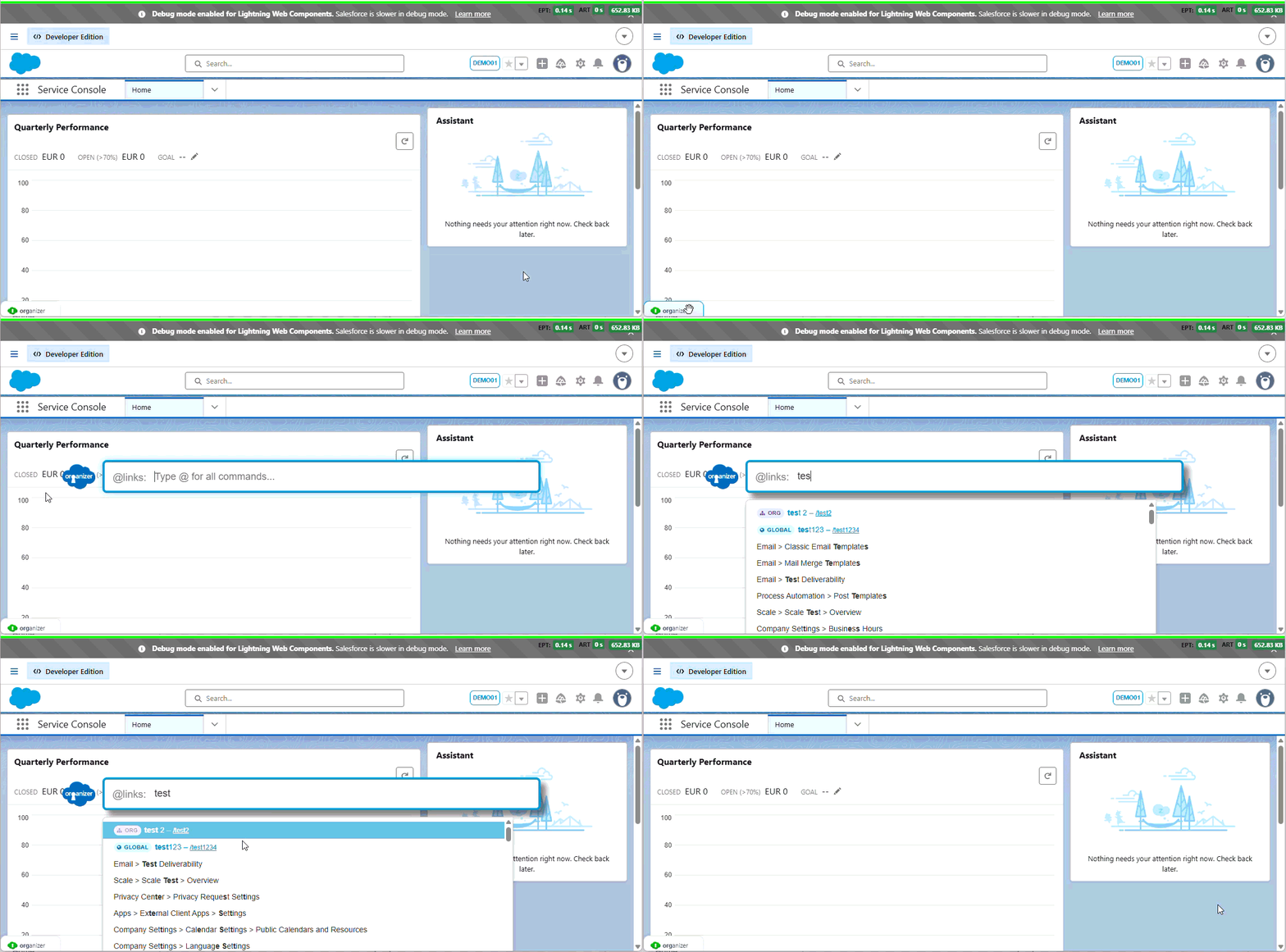
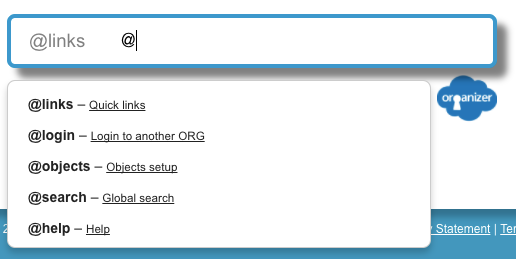
Type to search. Pressing ENTER without picking anything opens the first suggestion. Type @ to list every command:
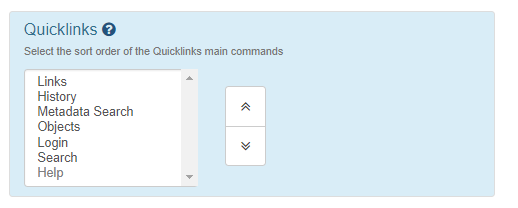
The @ command character is configurable (see the Options page); pick a non-alphanumeric character so it cannot collide with what you are searching for. The order of the commands is configurable too.
Opening in another tab
Any result can be opened in a new tab instead of the current one: type # before or after the search term, hold CTRL while clicking, or click with the middle mouse button.
Your own links
Changed in 1.0
Custom quick links used to be configured per ORG, inside the popup. They are now one synced list, configured in Options → Quick Links, and each link is either global or scoped to specific ORGs.
Global links
Offered on every ORG. Use these for paths that exist everywhere — /lightning/setup/DeployStatus/home, /changemgmt/monitorDeployment.apexp, and so on.
ORG links
Offered only on the ORGs you assign them to. Use these for links that only make sense in one place — a specific record, a custom Visualforce wizard, a report.
The two are told apart by a badge everywhere they appear: in the palette and in the Options list. A link takes a label, a URL or relative path, and its scope. The list has a filter box, a “global only / ORG only” filter, and bulk delete.
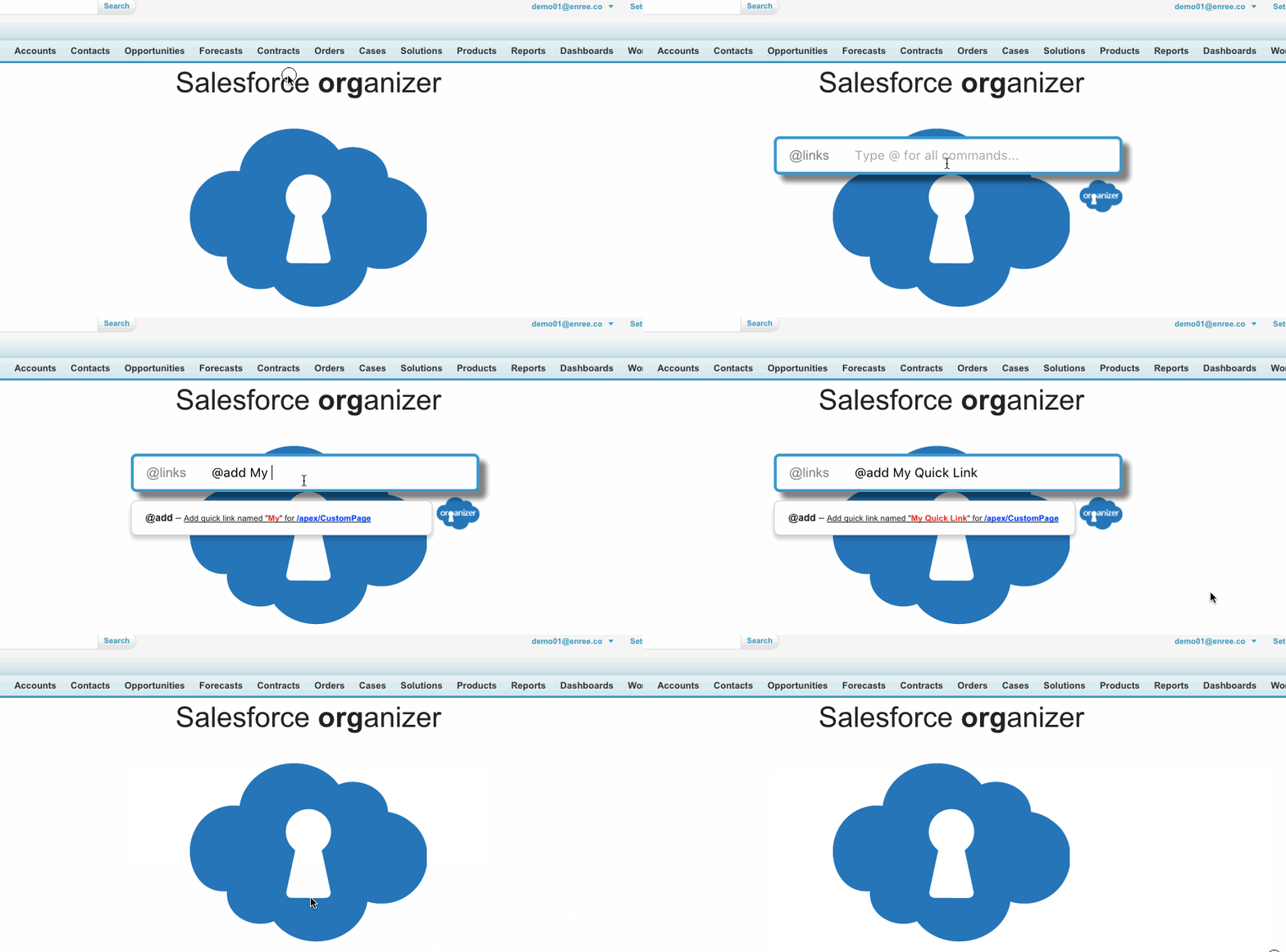
Adding one on the fly still works: the @add command inside the palette creates a link from the page you are on.
Coming from an older version? Your existing per-ORG links are folded into the new list automatically, scoped to the ORG they belonged to. Links with the same label and path are merged rather than duplicated, and the migration re-runs safely if a device on an older build syncs its old list back in.
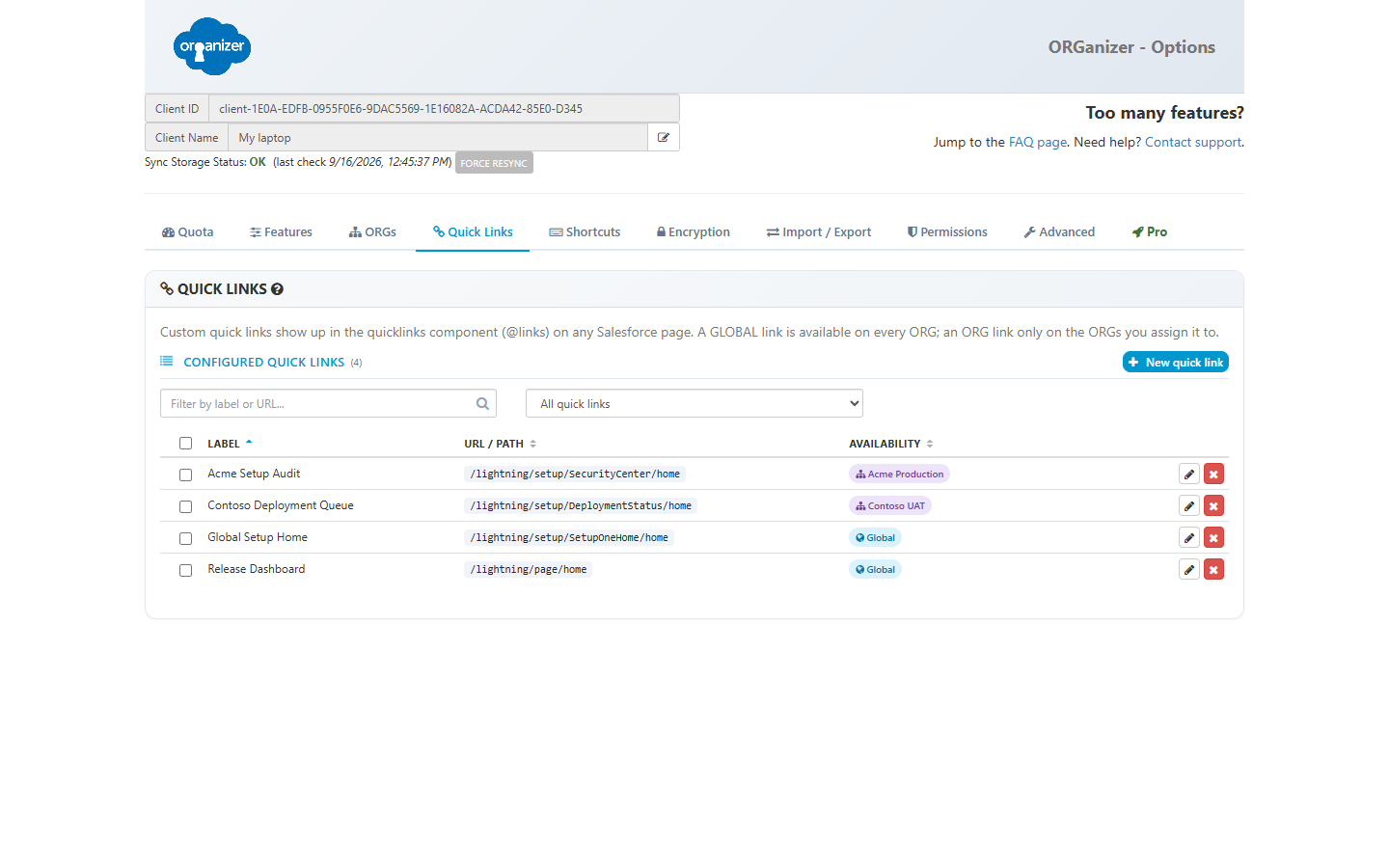
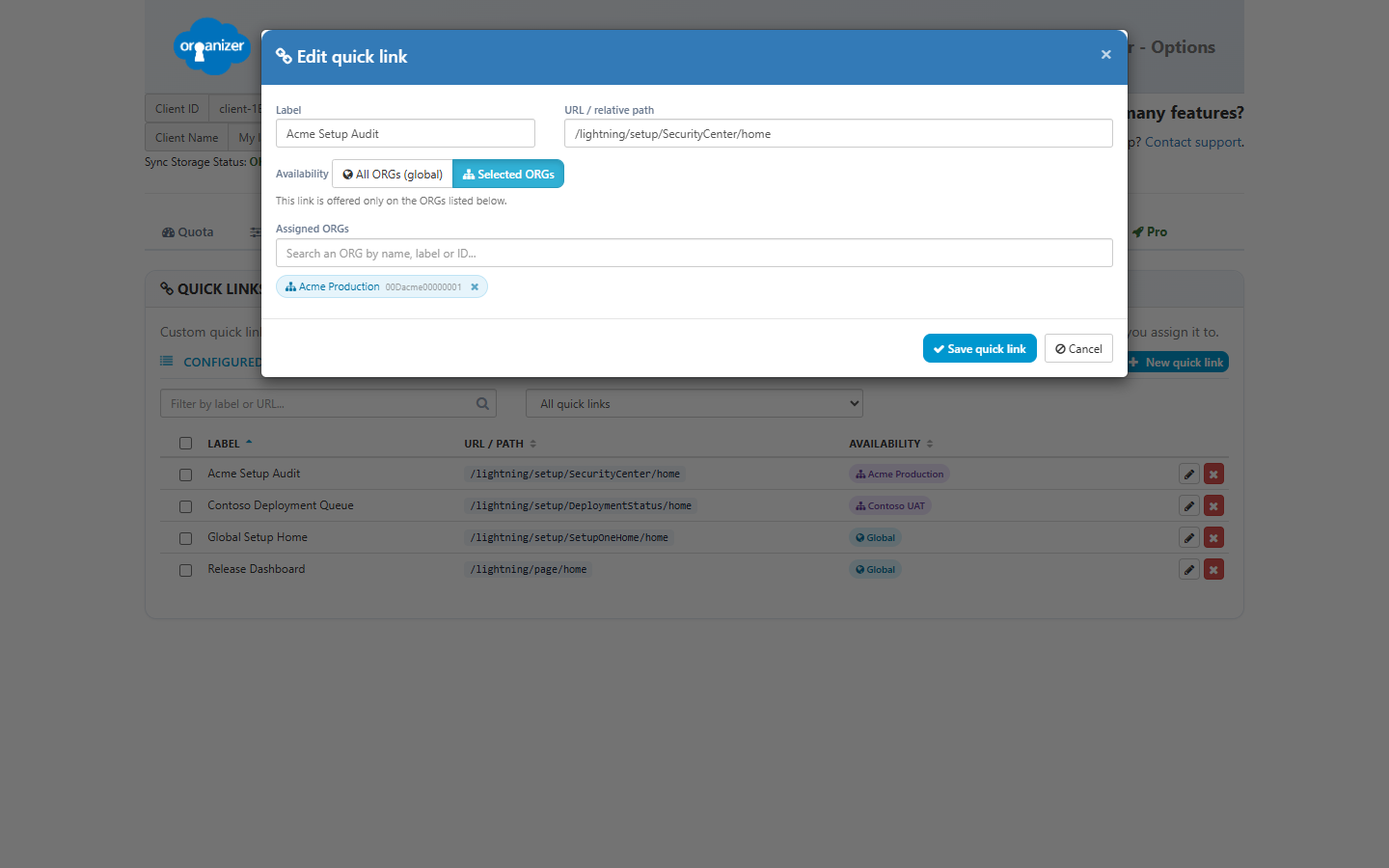
The pencil on a row opens the link editor, where the label, the path and the ORGs it is offered on are set:
Commands
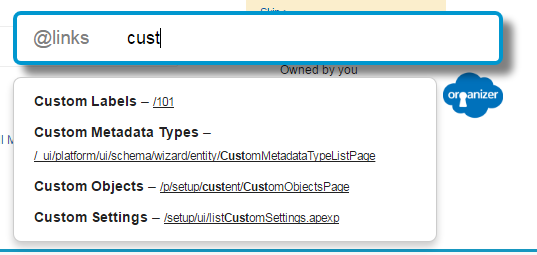
@links — standard setup and custom page links
Every standard setup link (Classic and Lightning, depending on the ORG) plus your custom pages.
@history — temporary links
A scratch list for the thing you are working on right now, useful when you keep going back and forth between the same handful of pages. Add an entry with @add and an optional description.
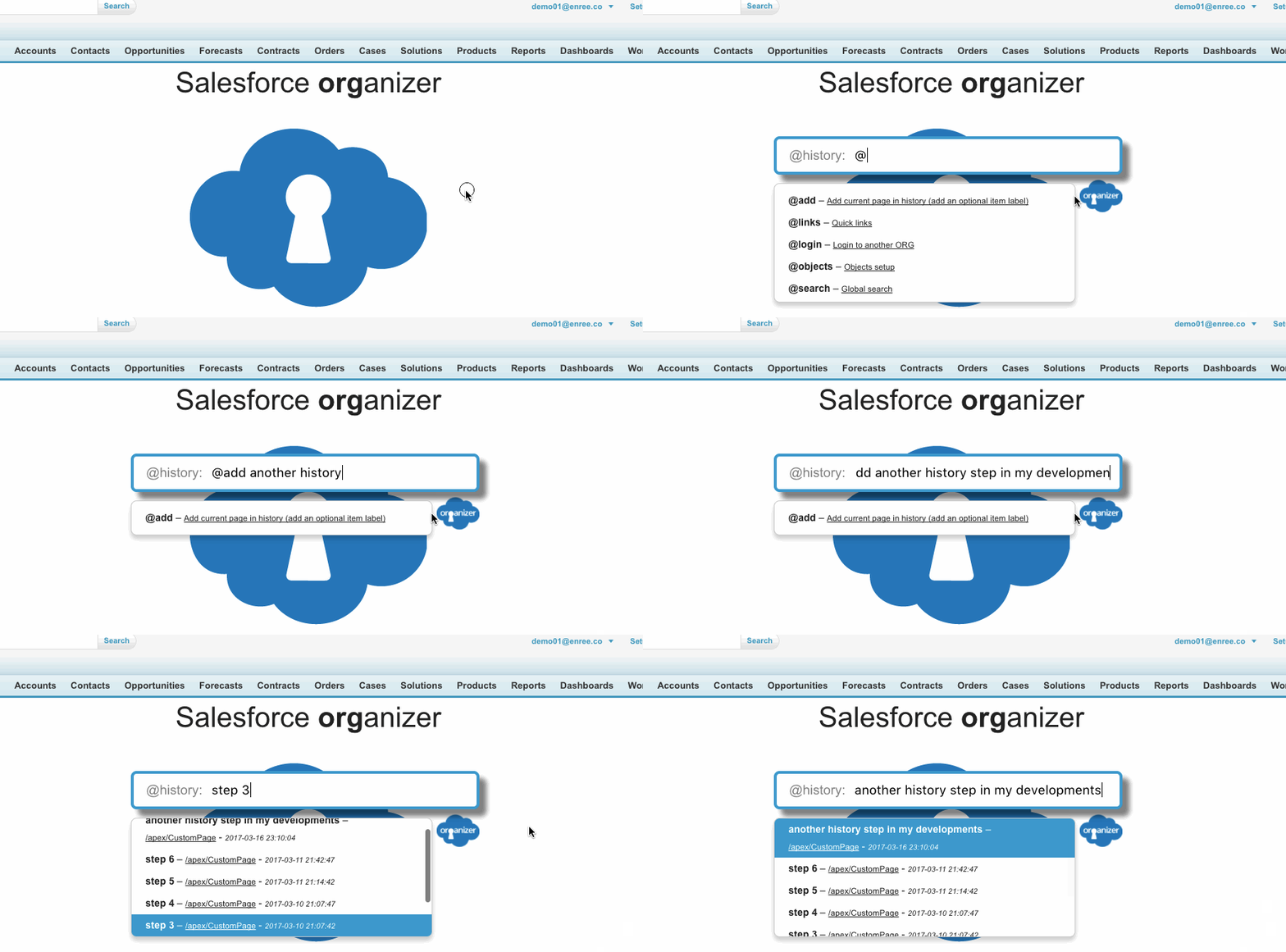
History items are stored locally only, never synced, and capped at 20 per ORG — the oldest drops off as you add new ones.
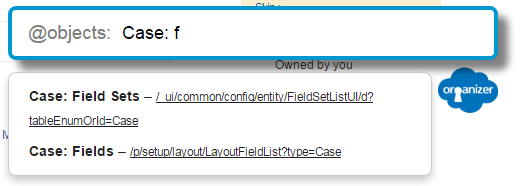
@objects — object setup pages
Jump straight to the setup page of any standard or custom object.
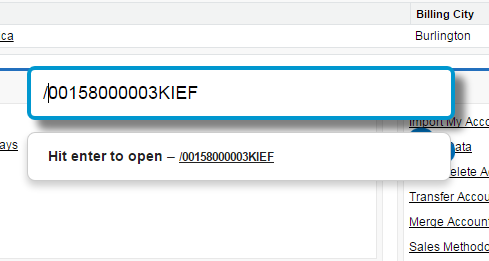
/ — a relative path
Start the search with / to open any path on the current ORG directly.
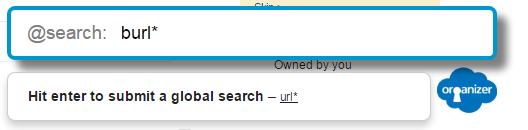
@search — global search
Runs Salesforce global search with whatever you typed.
Metadata search
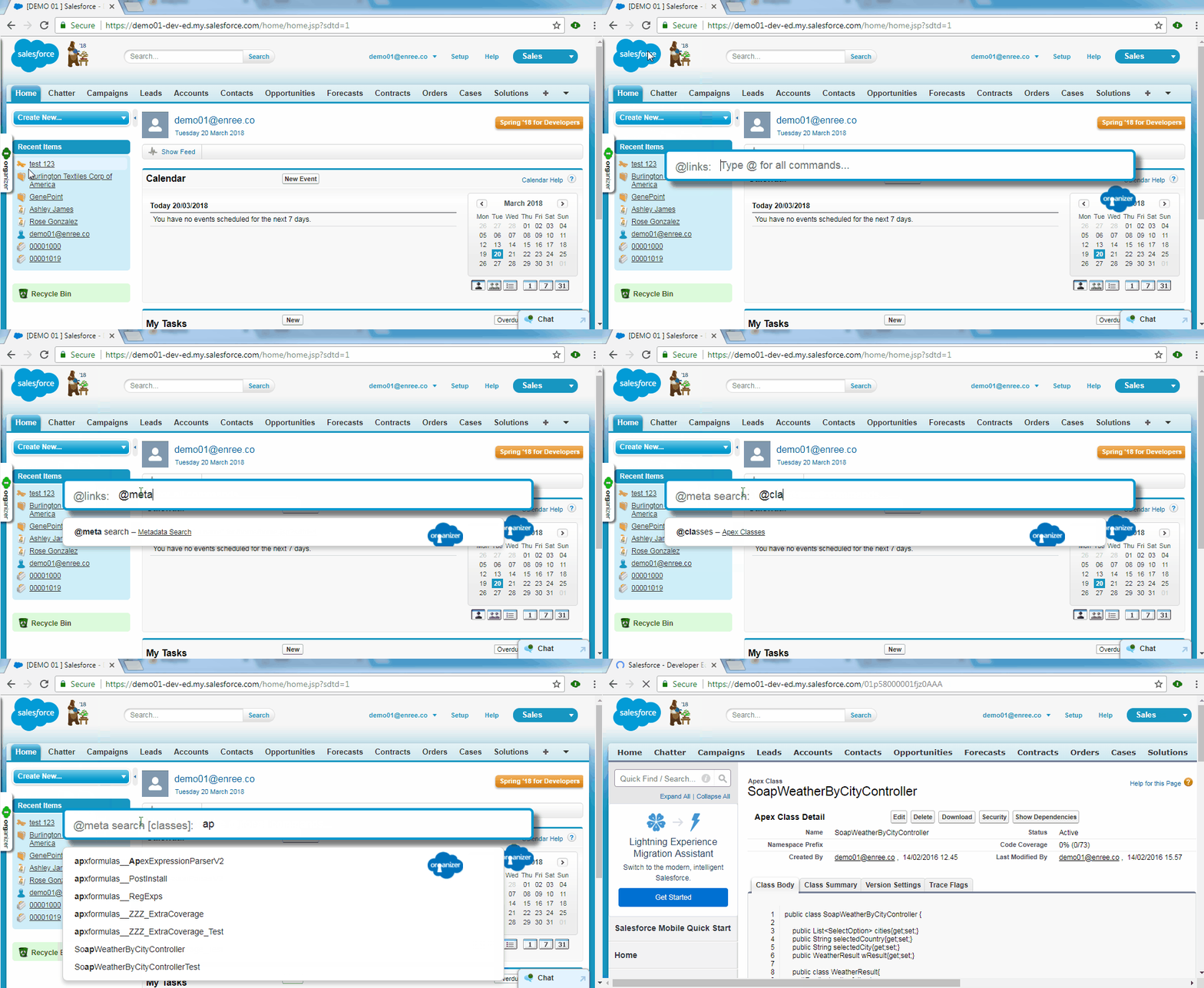
Search these component types directly:
- Apex Classes @classes
- Apex Triggers @triggers
- Visualforce Pages @pages
- Visualforce Components @components
- Custom Labels @labels
- Static Resources @static resources
- Profiles @profiles
- Workflow Rules @workflow rules
- Validation Rules @validation rules
Removed in 1.0
The @help command and the separate ORG links page it opened are gone. The palette itself already lists every custom, standard and object link for the current ORG, so the second, static rendering of the same data had nothing left to add.
The @login command is gone too: opening a stored login is the popup's job,
and reaching credentials from inside a Salesforce page is not something the palette needs to
do. An ORG that still had @login saved as its last command simply opens on the
default one.
Tab actions
With the focus on a Salesforce tab, these open the corresponding page in a new tab. All of them are configurable in the Options page.
| Action | Shortcut |
|---|---|
| Home page | CTRL + SHIFT + H |
| Setup page | CTRL + SHIFT + S |
| Developer Console | CTRL + SHIFT + F |
| Quick Links | CTRL + SHIFT + SPACE |
| Quick Console | CTRL + SHIFT + V |
| Quick Console plugin 1–9 | CTRL + SHIFT + 1…9 |
| Quick Console plugin quick action | CTRL + ALT + 1…9 |
| Autocomplete in a SOQL or formula editor | CTRL + SPACE |
On macOS, CMD replaces CTRL.
ORGanizer button
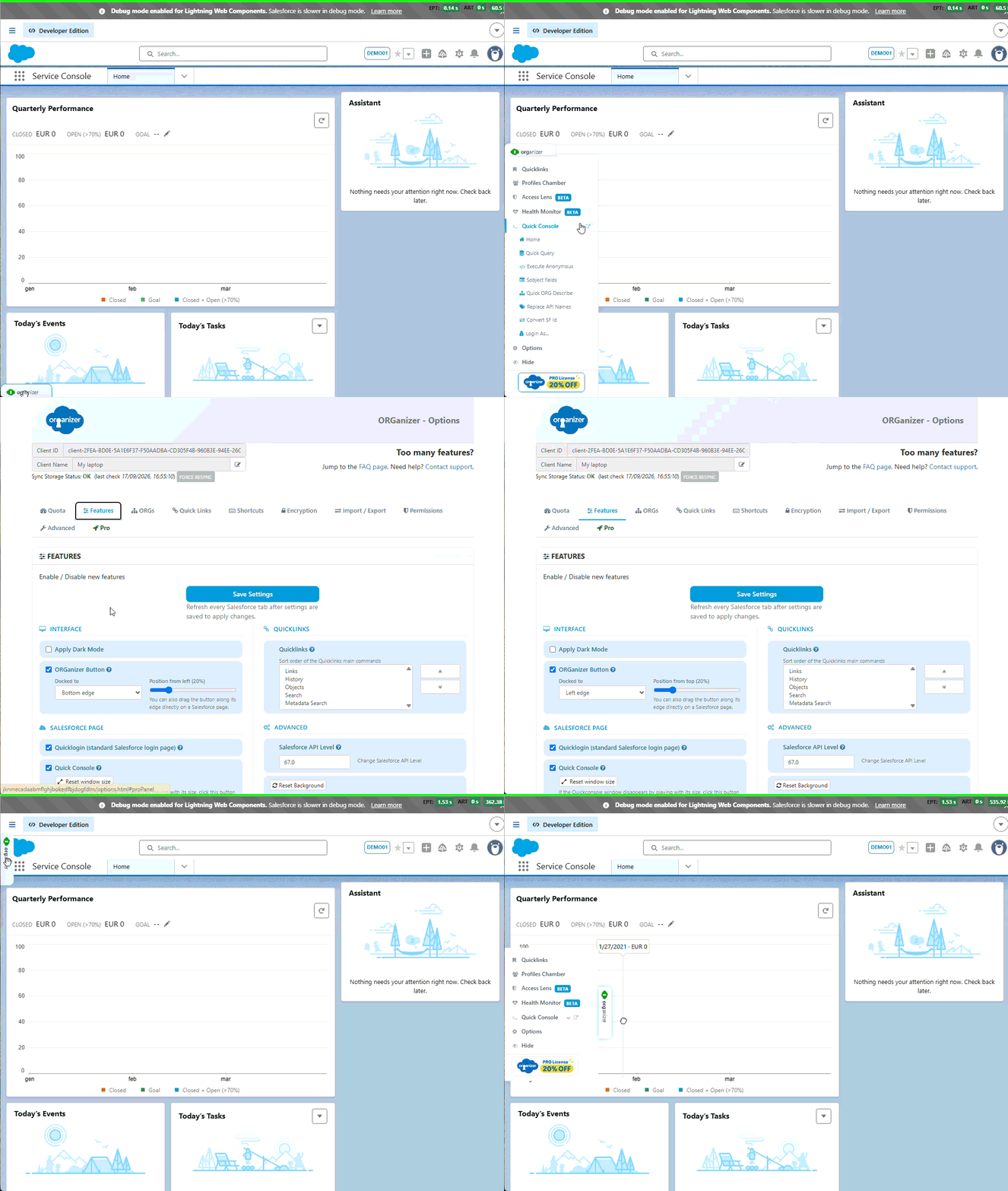
The ORGanizer button appears on every Salesforce page you granted access to. Expand it to reach the tools without a shortcut: Quick Links, Quick Console, Health Monitor, Access Lens, Profiles Chamber and the Options page.
New in 1.0
The button used to sit at the bottom left or the top left. It can now dock to any of the four page edges — bottom, top, left or right — and you can drag it along that edge to get it out of the way of whatever Salesforce has put there. Both the edge and the position along it are set in Options → Features → Interface, and dragging on the page updates them.
The whole button can be turned off from the Options page if you would rather work with the keyboard only.
Quick Login
Quick Login attaches ORGanizer to the Salesforce login pages, so you can sign in with a stored login without going back to the popup.
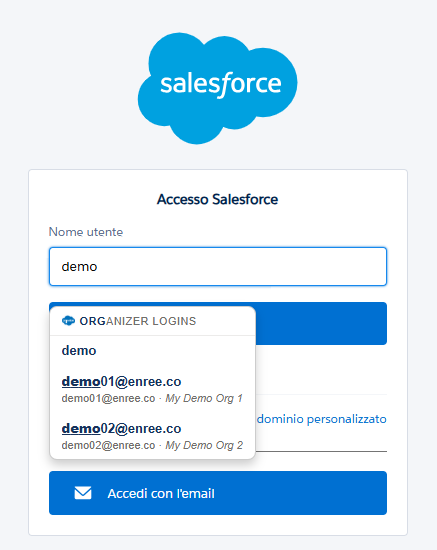
It hooks the username field and suggests the stored logins that match what you type.
If you sign in with a username and password ORGanizer does not know, it offers to store them.
New in 1.0
Quick Login now also works on the username-only login pages — the ones that ask for the username first and the password on a second screen, which is what My Domain and identity-provider setups increasingly use — and on Salesforce's new email-based login flow.
The email-based login flow new in 1.0
Salesforce is moving production and sandbox sign-in to an email-first experience served by
welcome.salesforce.com: you give an email address, pick the environment out of a
switcher, and type the password on a third screen. The classic login page has a
Log In with Email button that leads there. Quick Login follows that flow from
end to end.
| Step | What ORGanizer does |
|---|---|
| The email address | draws the same login picker under the field; pick one and it fills the email in and moves on |
| The verification code, when Salesforce asks for one | stands aside and says so — only you can read that email. The flow picks itself back up on its own once you are through |
| The environment switcher | matches your login against the tiles and opens the right one, filtering to production or sandboxes first |
| The password | fills it in and submits |
A login is offered here only if it carries a Login email (the login's settings). That flow asks for the email of the Salesforce account, which is not the ORG username, and ORGanizer does not guess one from the other: a login without it stays on the classic page. The picker says as much when none of your logins has one.
It also needs the welcome.salesforce.com domain, which the popup offers to grant
alongside login and test the first time you use it, and which you can
grant at any point in Options → Permissions.
Where it stops by itself
Nothing runs until you pick a login. If two environments match your login equally well, or none does, ORGanizer leaves the choice to you and waits at the password step rather than opening the wrong ORG. If that step names an account other than the one you picked, the password is not filled in. A flow that stalls is abandoned, and the password it was holding goes with it. When you arrive at a password screen with no flow running and ORGanizer recognises the account, it offers to fill the password in — an offer, which submits nothing.
With encryption enabled, Quick Login needs an unlocked session. If the background worker has been restarted, ORGanizer asks for your master password before filling anything in.
Enable or disable the feature in the Options page — one switch covers both the classic page and the email-based flow.
Enhanced Formula
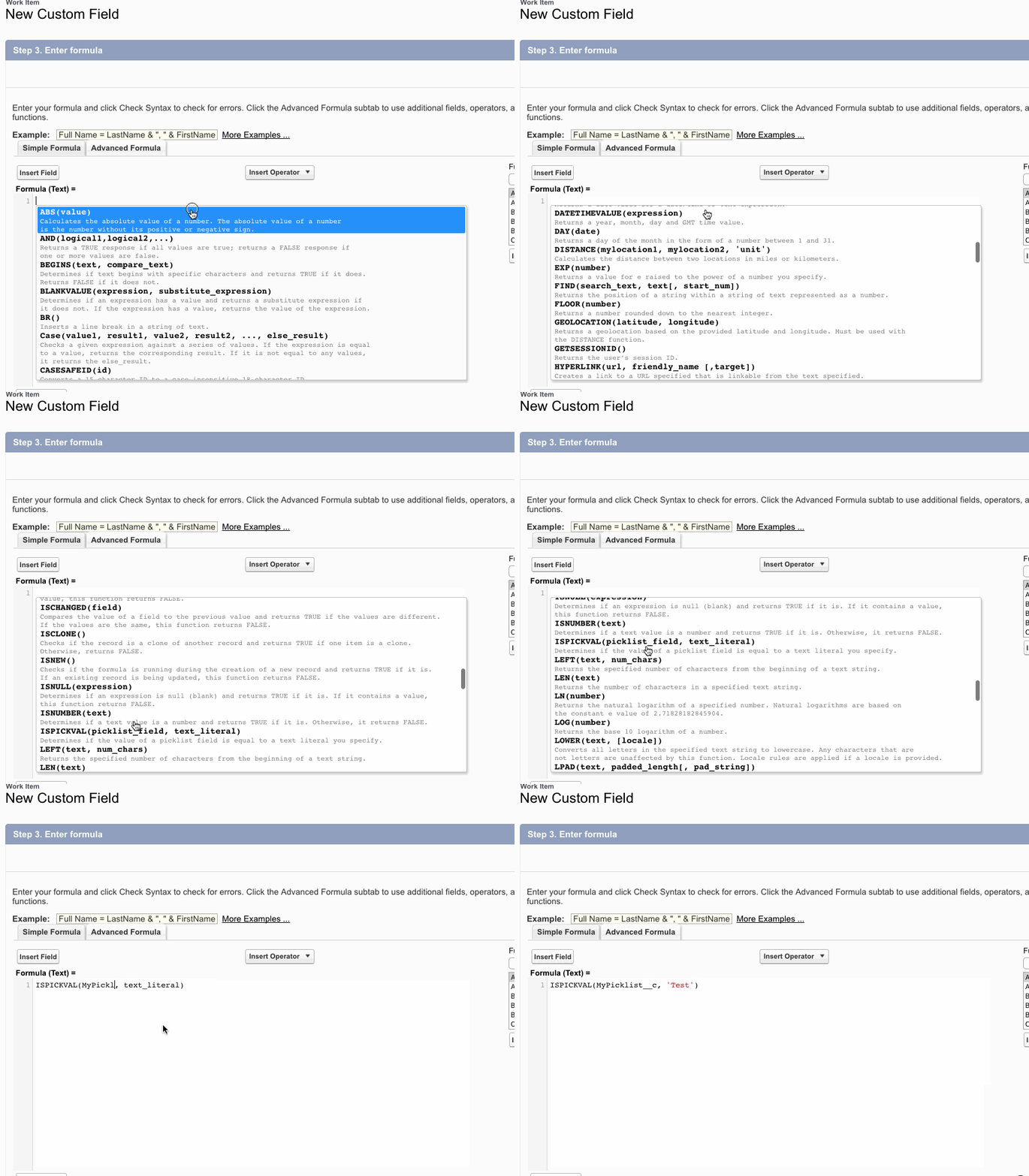
Enhanced Formula replaces the plain Salesforce formula textarea with a real editor — syntax highlighting, indentation and autocomplete — on custom fields, validation rules and workflow conditions.
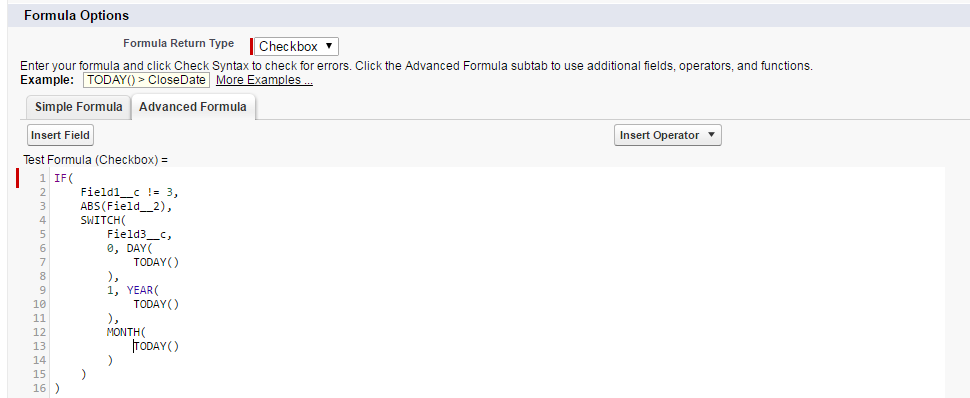
- CTRL + I re-indents the formula.
- CTRL + SPACE autocompletes functions and fields.
- The editor can be resized from its bottom-right corner; the tab size is set in the Options page.
Enable or disable the feature in the Options page.
Quick Console
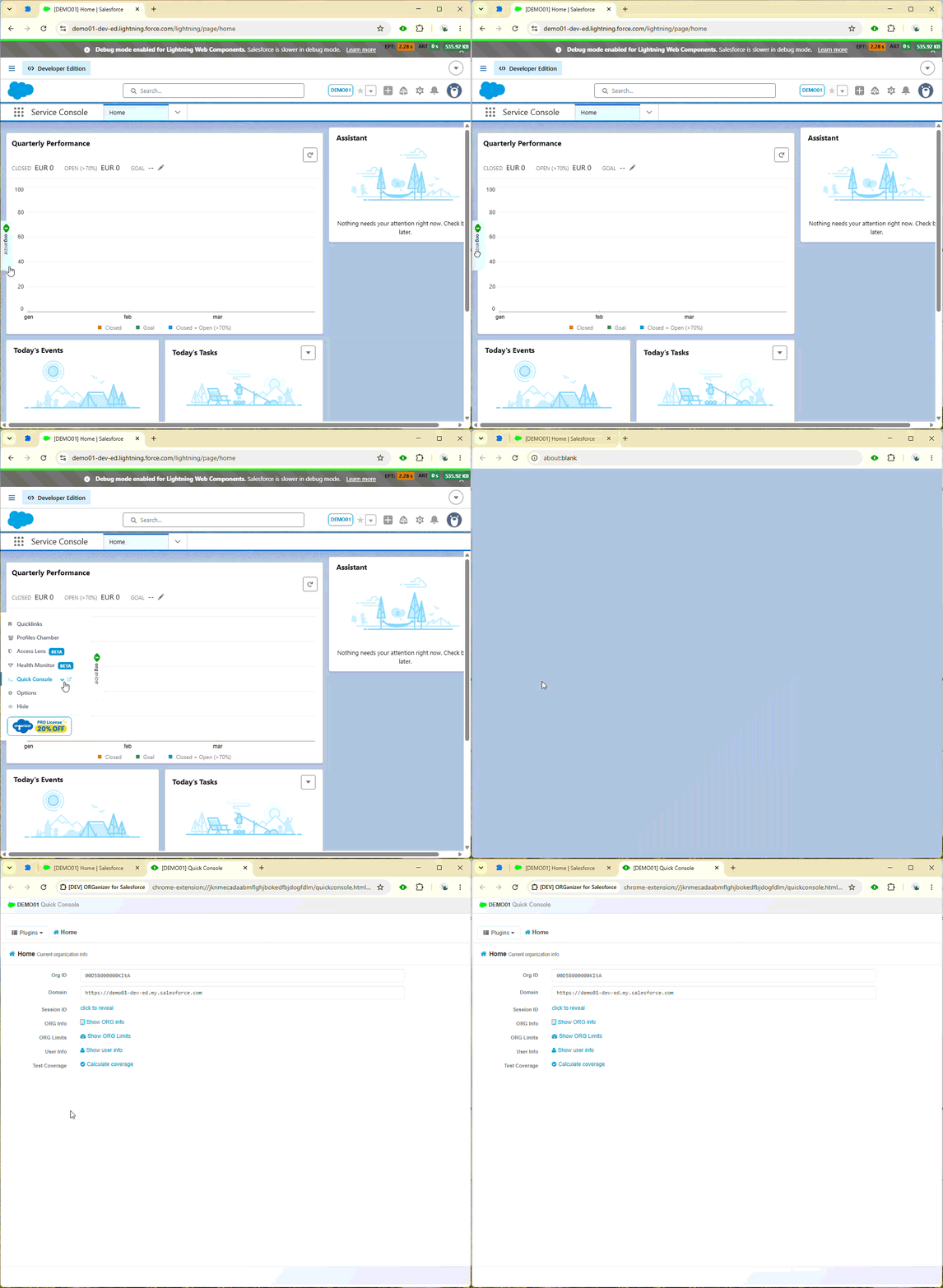
The Quick Console is a set of plugins that open over the Salesforce page you are on. Open it with CTRL + SHIFT + V or from the ORGanizer button:
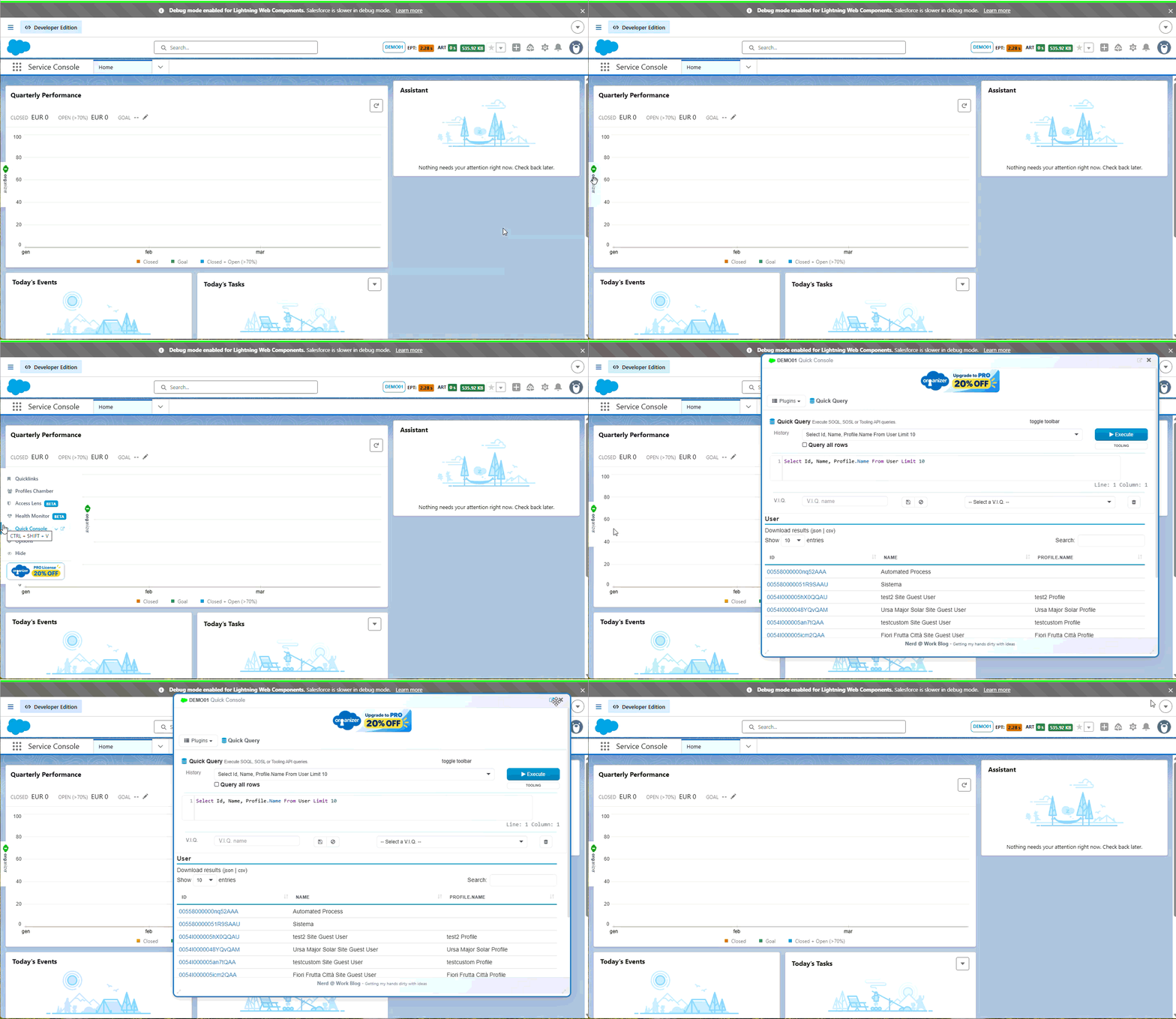
Jump straight to a plugin with CTRL + SHIFT + [index]. The index of each plugin is shown on the Plugins tab:
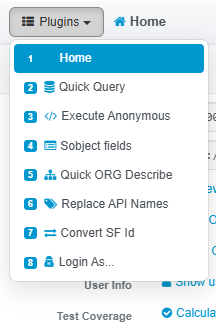
Some plugins also have a quick action: CTRL + ALT + [index] runs the plugin's main action without opening the console at all. This is available for SObject fields (index 4), Replace API names (index 6) and Salesforce ID converter (index 7). Every shortcut can be changed in the Options page.
In its own tab
New in 1.0
The console can now be opened as a full browser tab instead of an overlay: use the open in tab icon in the console header, or the Quick Console action next to a live ORG in the popup's ORGs tab. You get the whole viewport for long queries, wide result sets and debug logs, and the console stays open while you navigate the ORG in another tab.
Two things behave differently in the dedicated tab, by design: there is no close button (it is a tab — close the tab), and Replace API names is disabled, because it rewrites a Salesforce page and there is no Salesforce page underneath.
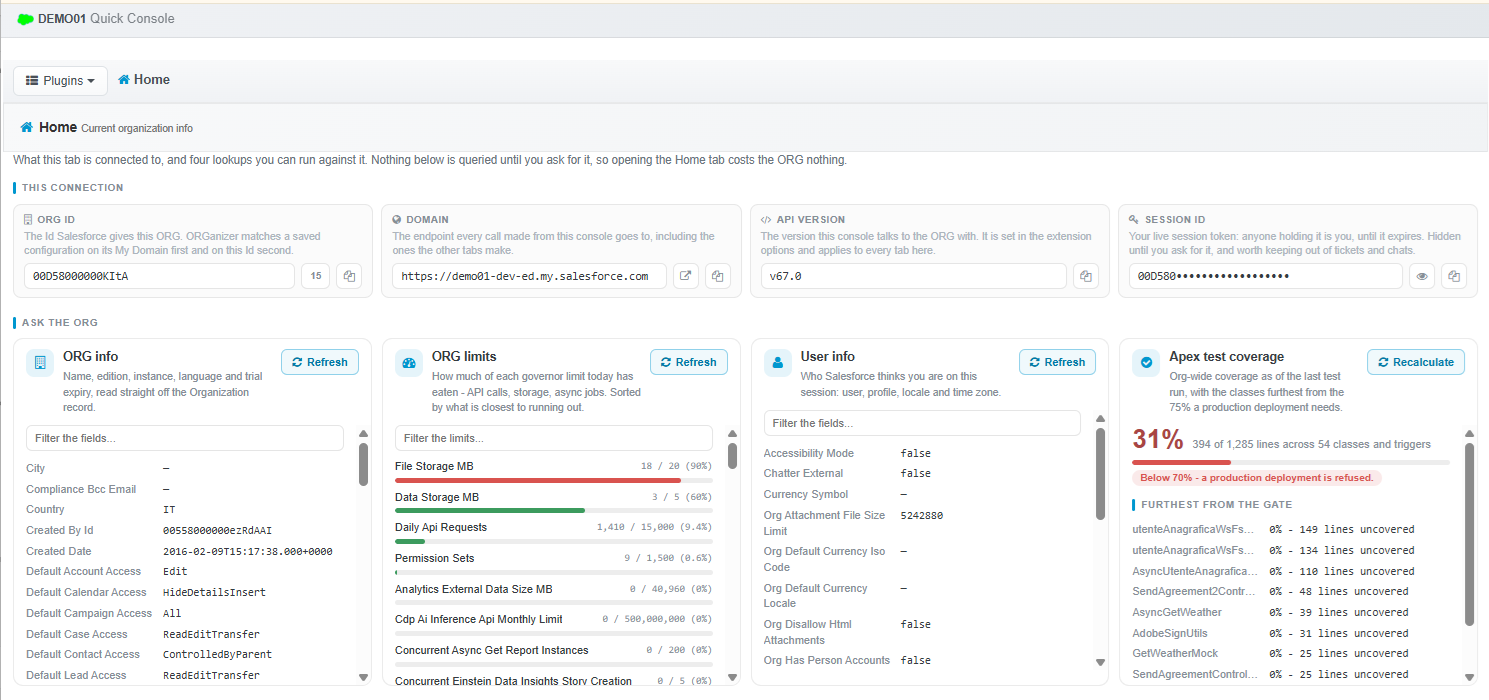
Home
The landing plugin: everything about the ORG you are in.
- Organization Id
- Server domain
- Session Id
- ORG info (REST API)
- User info (SOAP API)
- Apex test coverage
Quick Query
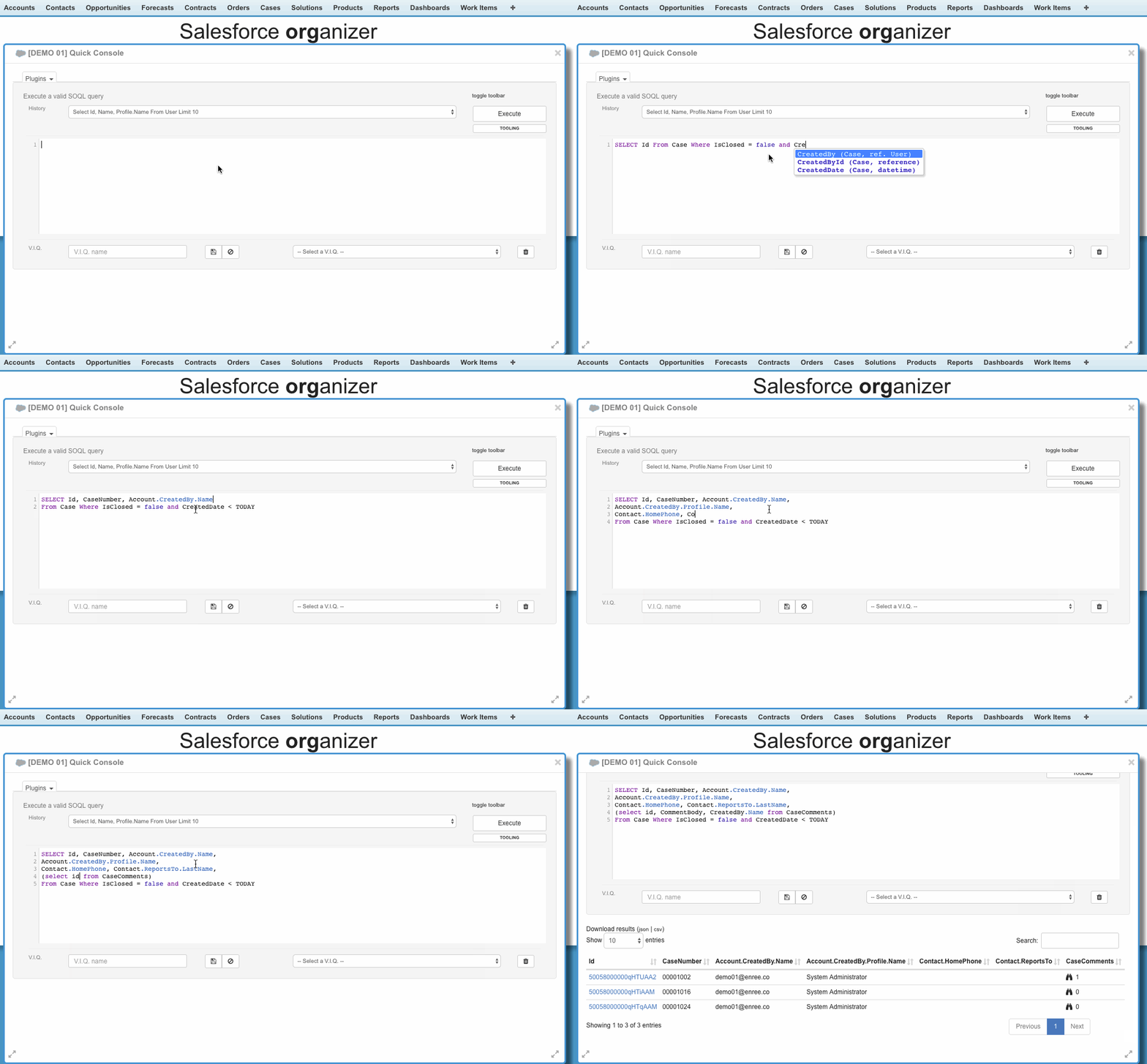
SOQL, SOSL and Tooling API queries, including parent references and subqueries:
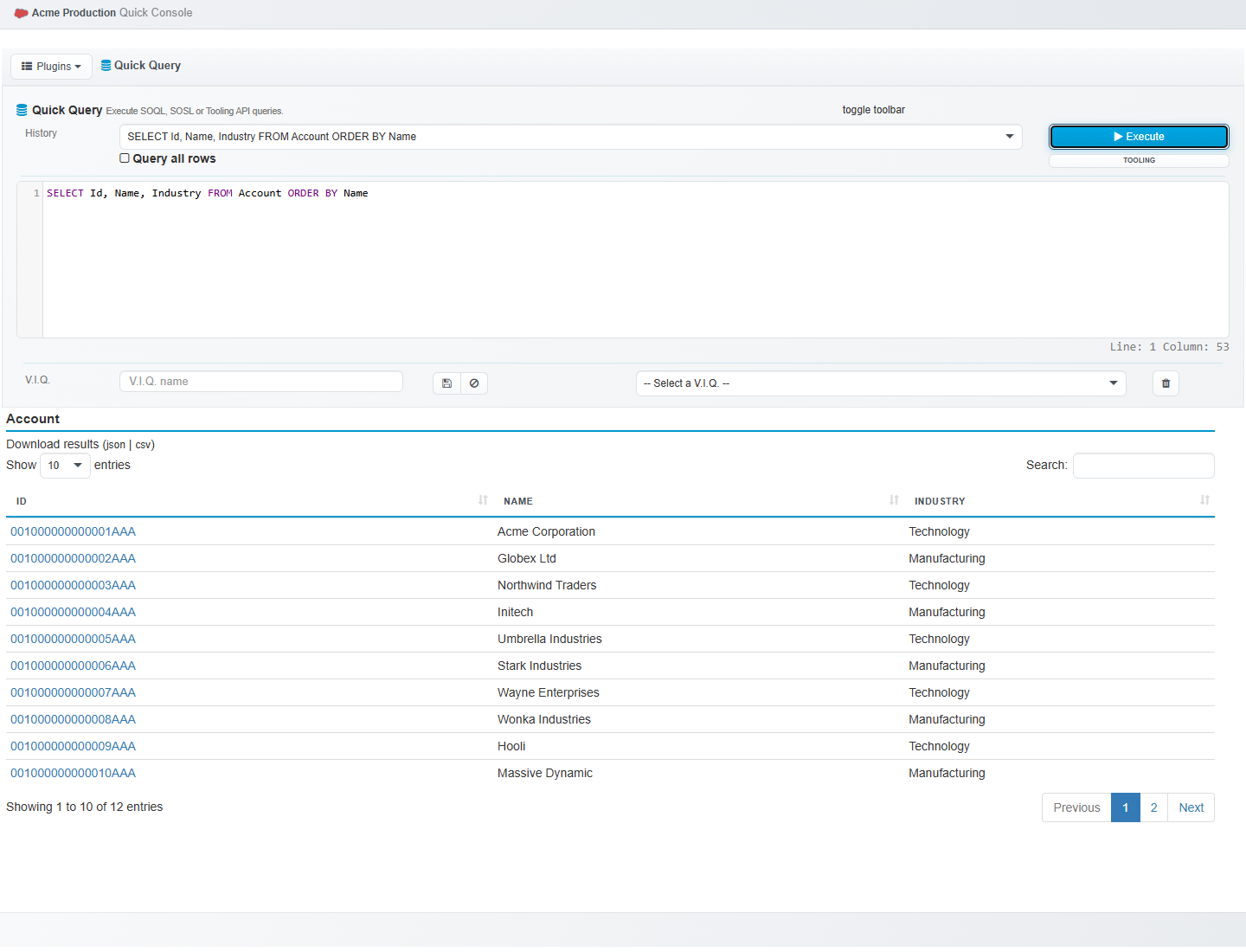
- Results are sortable and searchable locally, and downloadable as JSON.
- The last 50 queries per ORG are kept in a history you can pick from.
- CTRL + SPACE autocompletes SOQL keywords, custom fields, relationships and objects. The
*wildcard expands to all, all custom or all standard fields. - The Tooling API button switches the query to the Tooling endpoint.
- Typing a plain search term runs a SOSL search, with results grouped by object.
- The editor resizes from its bottom-right corner.
Queries worth keeping go into Very Important Queries (V.I.Q.), named and shared across ORGs.
V.I.Q.s are stored locally and are not synced. They ride along in the Import / Export file and in the automatic backups — which is also how you move them to another browser. The separate Backup V.I.Q. & V.I.S. button that used to sit in the Options page was removed in 1.0: the regular export already carried them.
Execute Anonymous
Run anonymous Apex without opening the Developer Console:
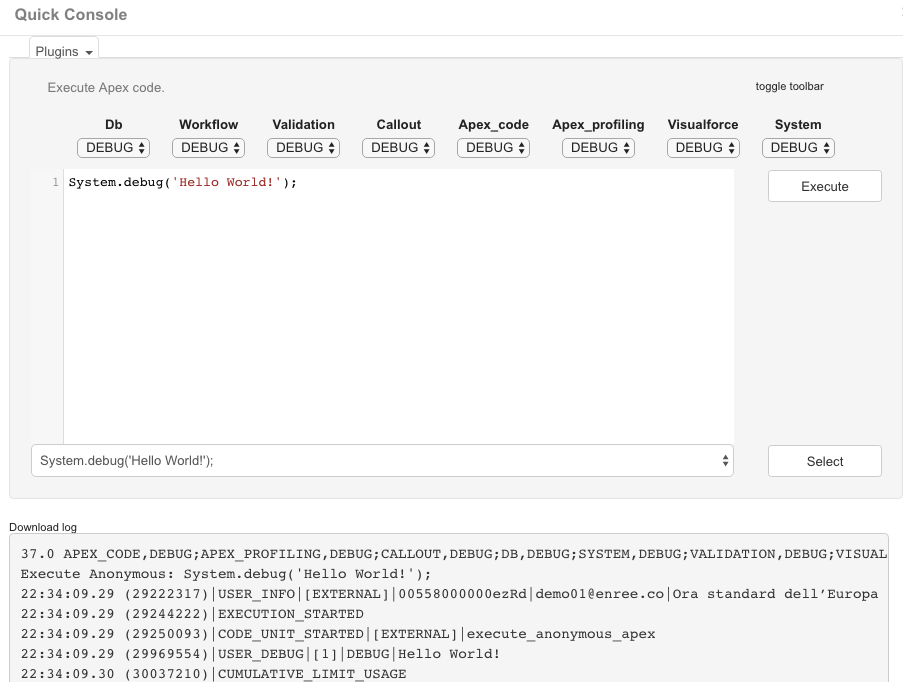
- Pick the debug level per category; Download log saves the generated log.
- The last 50 scripts per ORG are kept.
- CTRL + I re-indents the code.
- The editor resizes from its bottom-right corner.
Scripts worth keeping go into Very Important Scripts (V.I.S.), same as V.I.Q.:

SObject fields
Query every field of one record. Type a Salesforce Id, or let ORGanizer take it from the current
page URL (it also picks up an id query-string parameter):
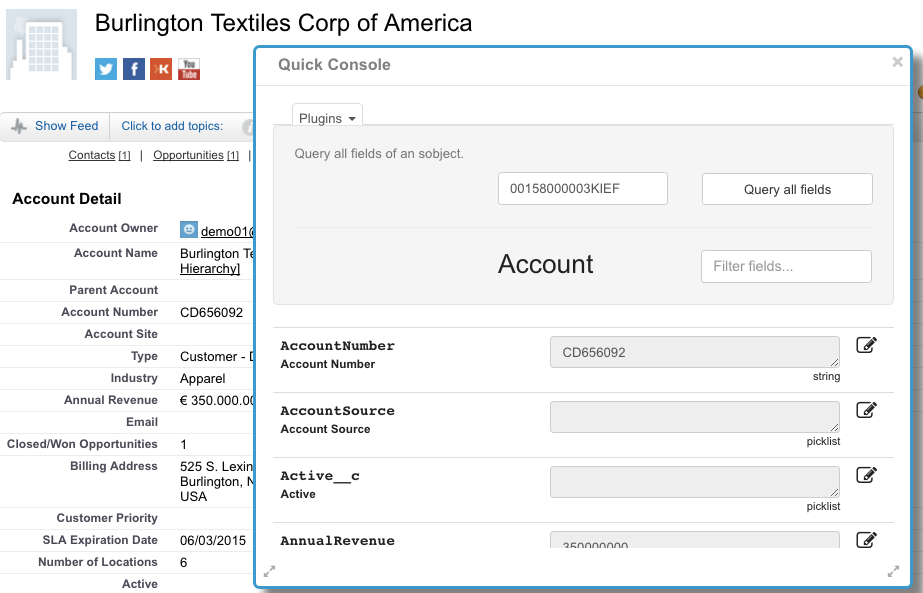
Every updatable field is editable inline, with a rollback button, and saved individually:
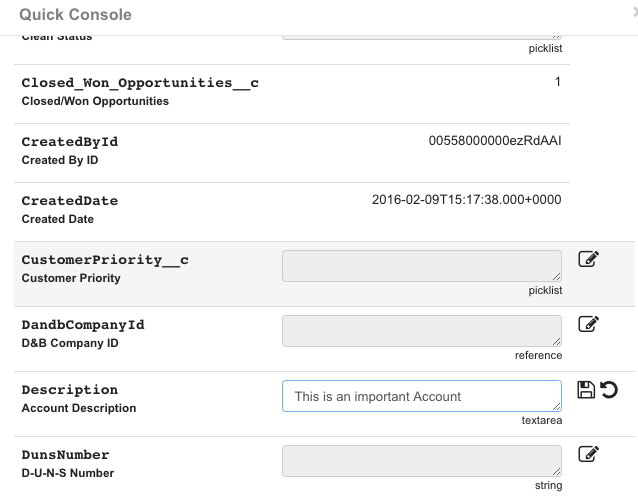
The quick action CTRL + ALT + 4 opens the plugin and runs the query straight away.
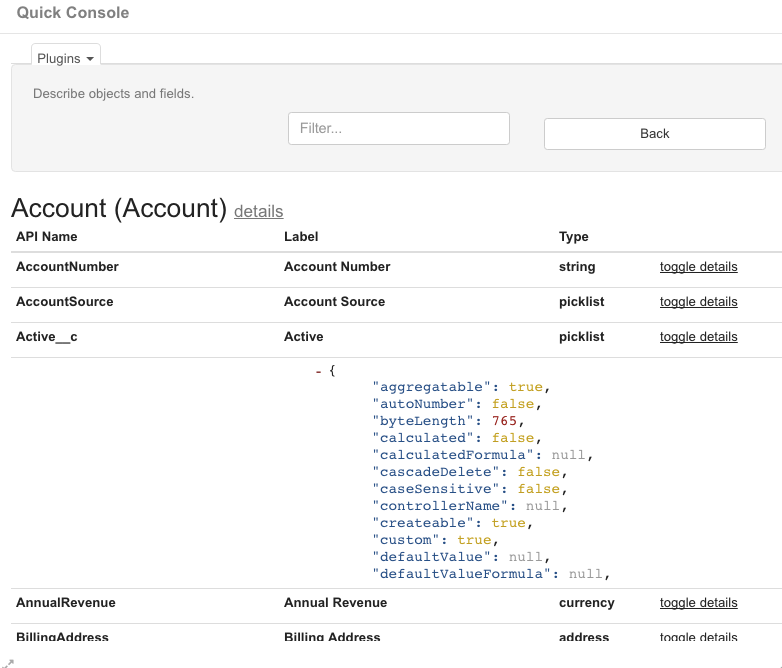
Quick ORG Describe
Describe the ORG's objects:
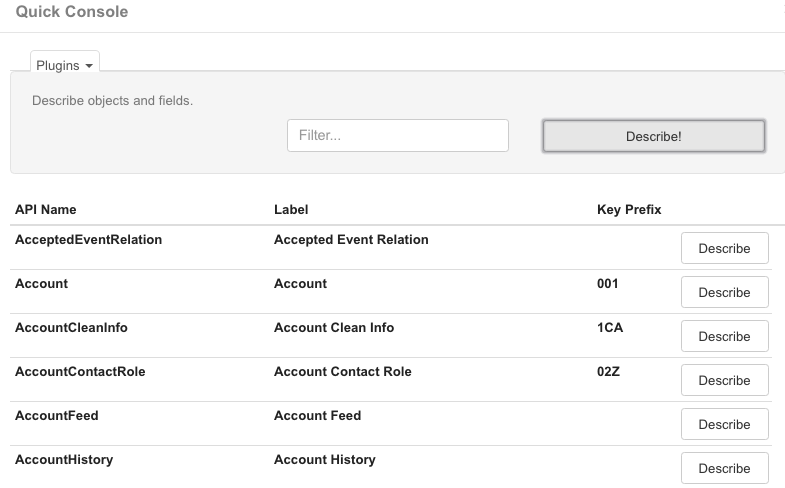
… and every field of each one:
Replace API names
Swap every custom field label on the page for its API name. Works on the Classic and Lightning standard layouts, the field set editor and the page layout editor:
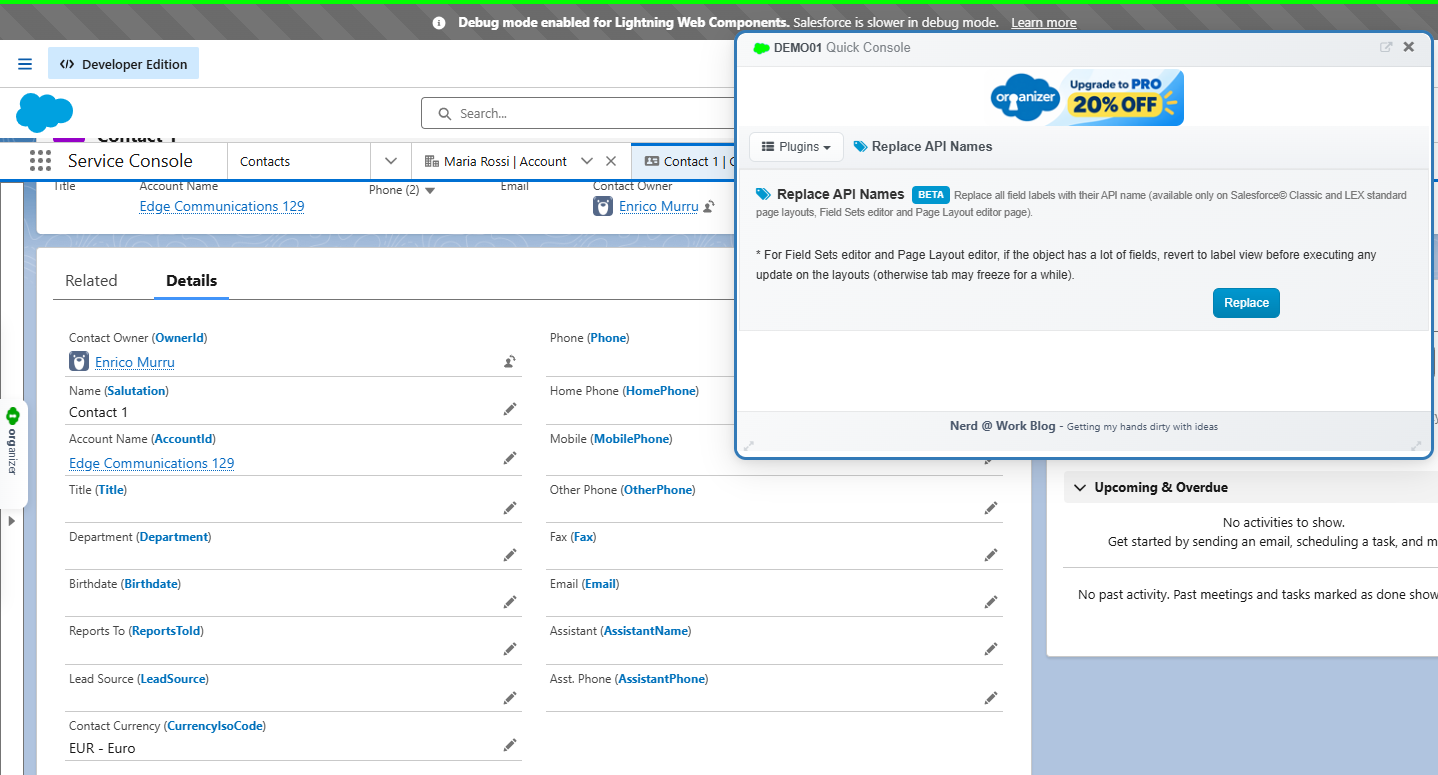
On the field set and page layout editors, switch back to the label view before saving a layout on an object with a lot of fields — otherwise the tab can freeze for a while. The plugin is disabled in the dedicated tab, where there is no Salesforce page to rewrite.
Salesforce ID converter
Convert 15-character Salesforce Ids to their 18-character form, in bulk:
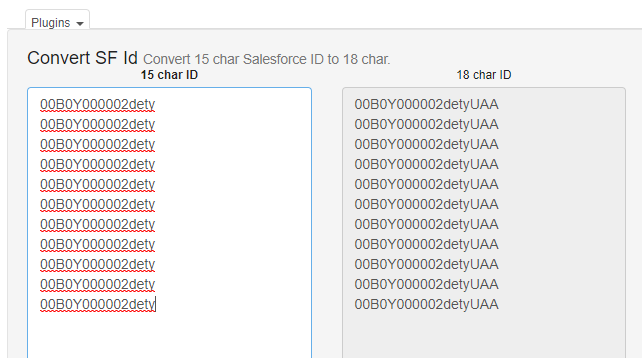
The quick action CTRL + ALT + 7 turns it into a URL clipper: the Id of the record you are looking at goes straight to the clipboard.
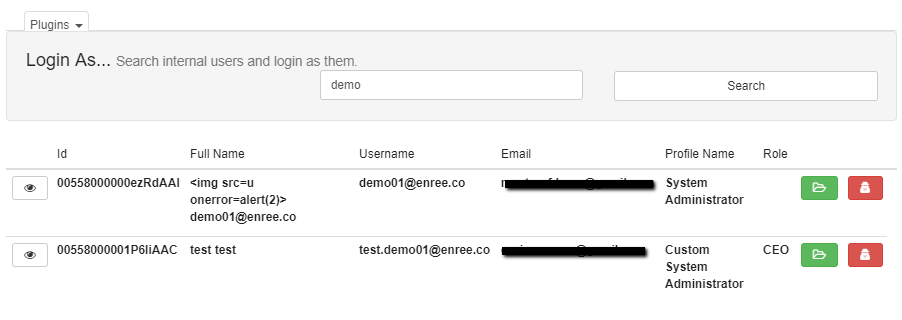
Login As…
Log in as another internal user. Search by name or username, then open the user's detail page, log in on a new tab, or log in in a private window (if ORGanizer is allowed there):
Field Usage new in 1.0
The question every long-lived ORG ends up asking: which of these fields is anybody actually filling in? Pick an object and Field Usage goes through its fields one by one, counting how many records carry a value and what share of the object that is — the quickest way to tell a field that is doing work from one that has been empty since the day it was created, before a clean-up, a migration or a page layout review:
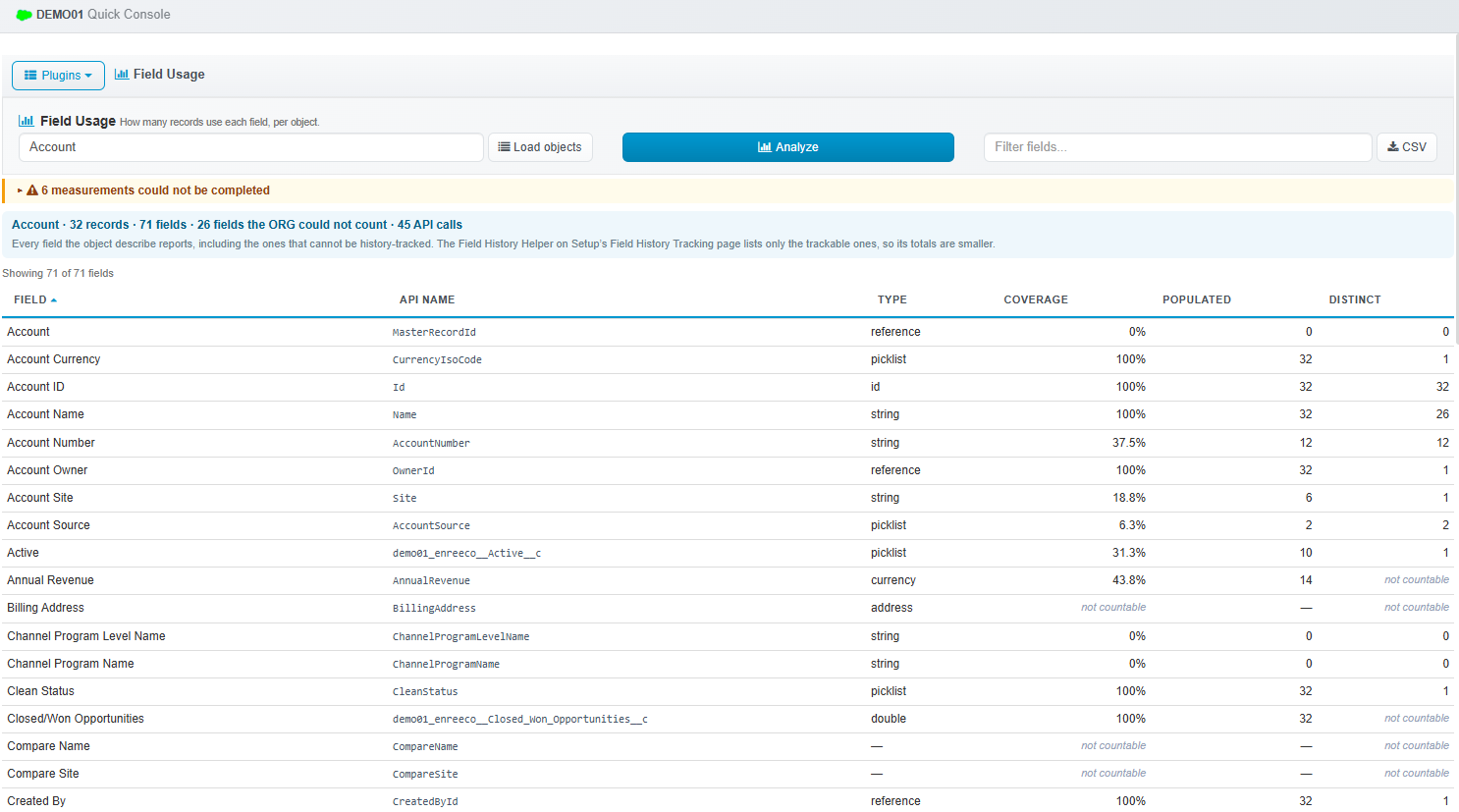
The numbers are what your user can see: the analysis runs with your session, so sharing rules and field-level security apply to it exactly as they do to any other query. Run it as an administrator for a picture of the whole object.
Health Monitor new in 1.0
The Health Monitor is an ORG health dashboard: seventeen sections of analysis across nine tabs, rolled up into a single Health Score, plus a live limits monitor and two export formats. Open it from the ORGanizer button or from the Health Monitor action next to a live ORG in the popup.
It never queries your ORG behind your back
The page opens idle, behind a start overlay that tells you exactly how many sections it is about to run, roughly how many API calls that costs and how many run at a time. Nothing happens until you press Start. There is no cache either — which means what you are looking at is never quietly stale.
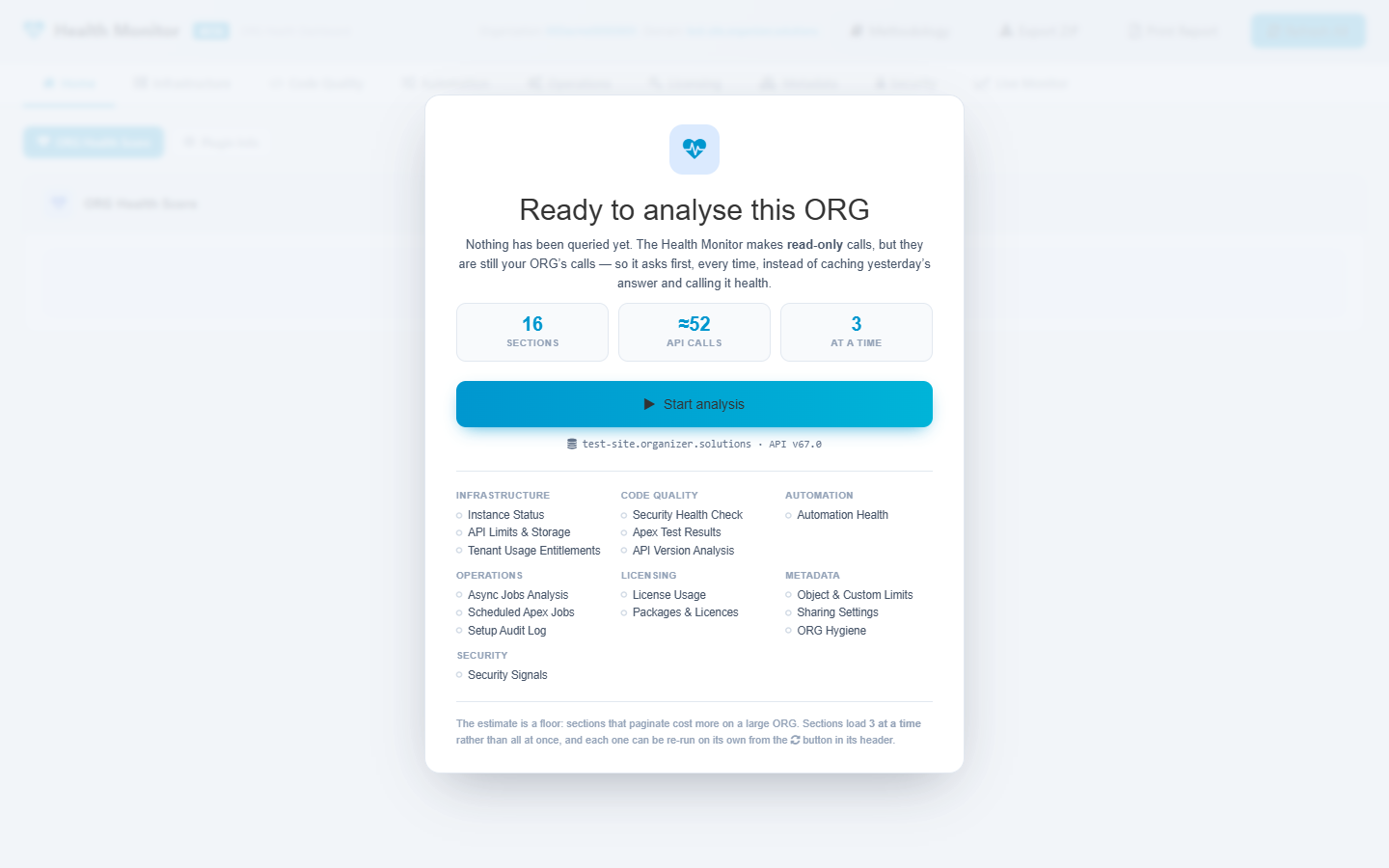
What it looks at
| Tab | Sections |
|---|---|
| Home | Health Score and the sub-score breakdown |
| Infrastructure | Instance Status, API & governor limits, Storage, Tenant usage entitlements |
| Code Quality | API version analysis, Apex test results and execution time |
| Automation | Flows, Process Builder, workflow rules, validation rules, triggers |
| Operations | Async jobs, Scheduled Apex jobs |
| Licensing | License usage, inactive users, installed packages and their licences |
| Metadata | Object limits, sharing settings, record counts |
| Security | Security Health Check, setup audit log, login and elevated-access signals, connected apps, ORG hygiene |
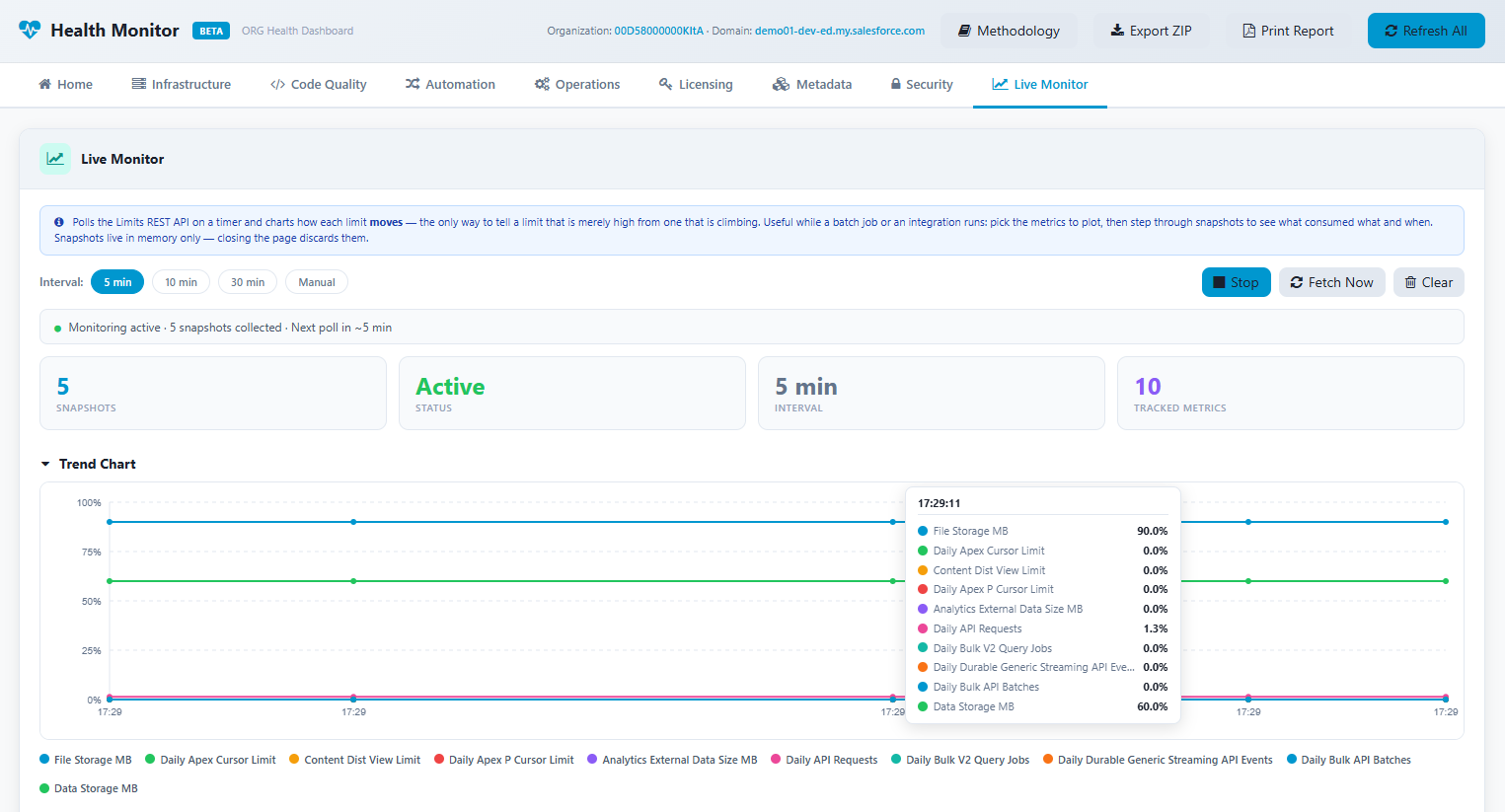
| Live Monitor | Governor limits polled over time, with a trend chart |
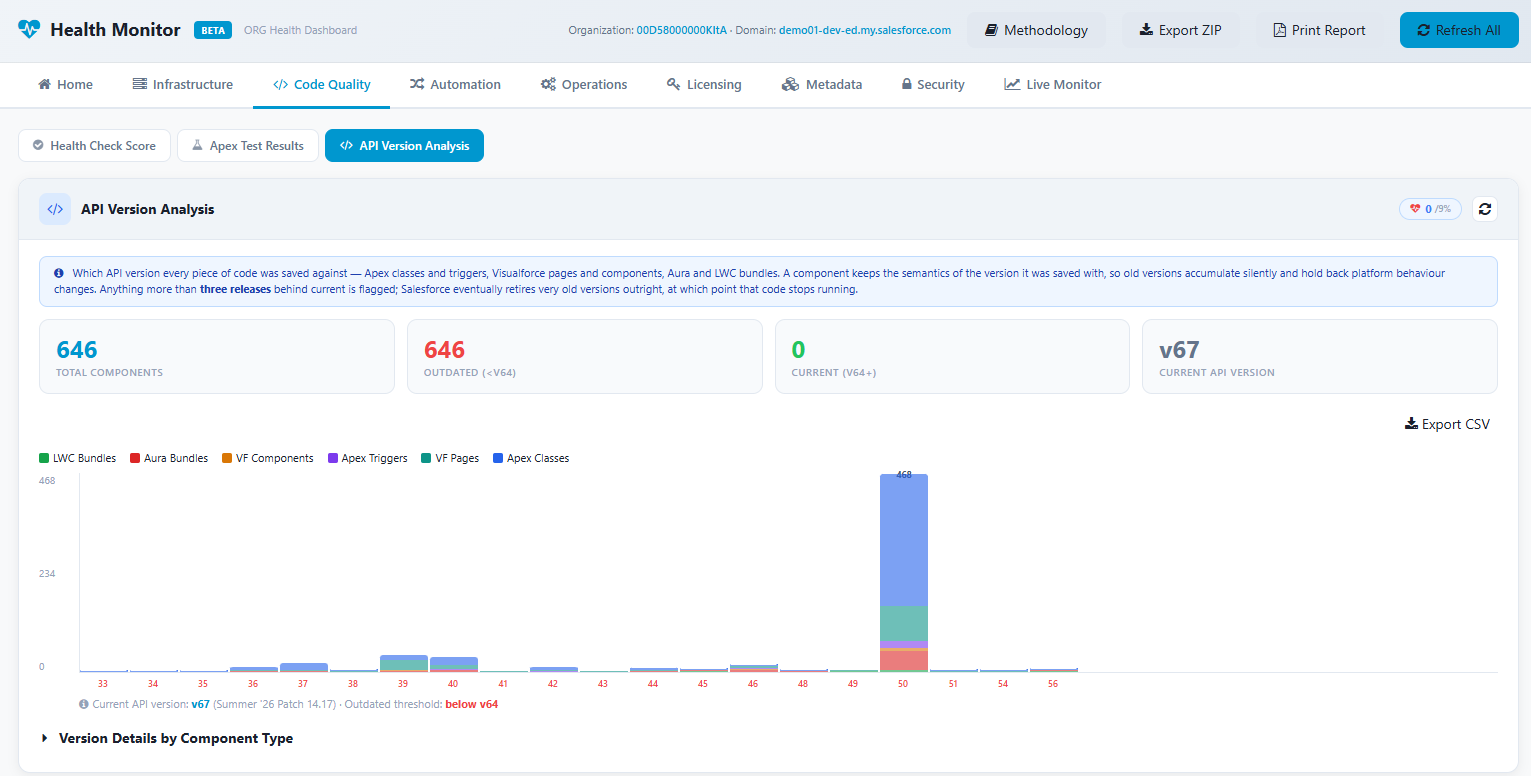
The Health Score
A 0–100 weighted average of eleven sub-scores, grouped exactly like the tab bar so a low overall number leads you straight to the section responsible. Sections that cannot be scored fairly are deliberately left out of the average rather than given a made-up value.
Every threshold the dashboard judges by — the usage bands, the score bands, the API version lag, the coverage gates, the automation penalties — lives in one registry, and the Methodology page renders that registry as a readable document: each number with the reasoning behind it. It is a genuinely static page: no session, no API call, safe to read before you ever run an analysis.
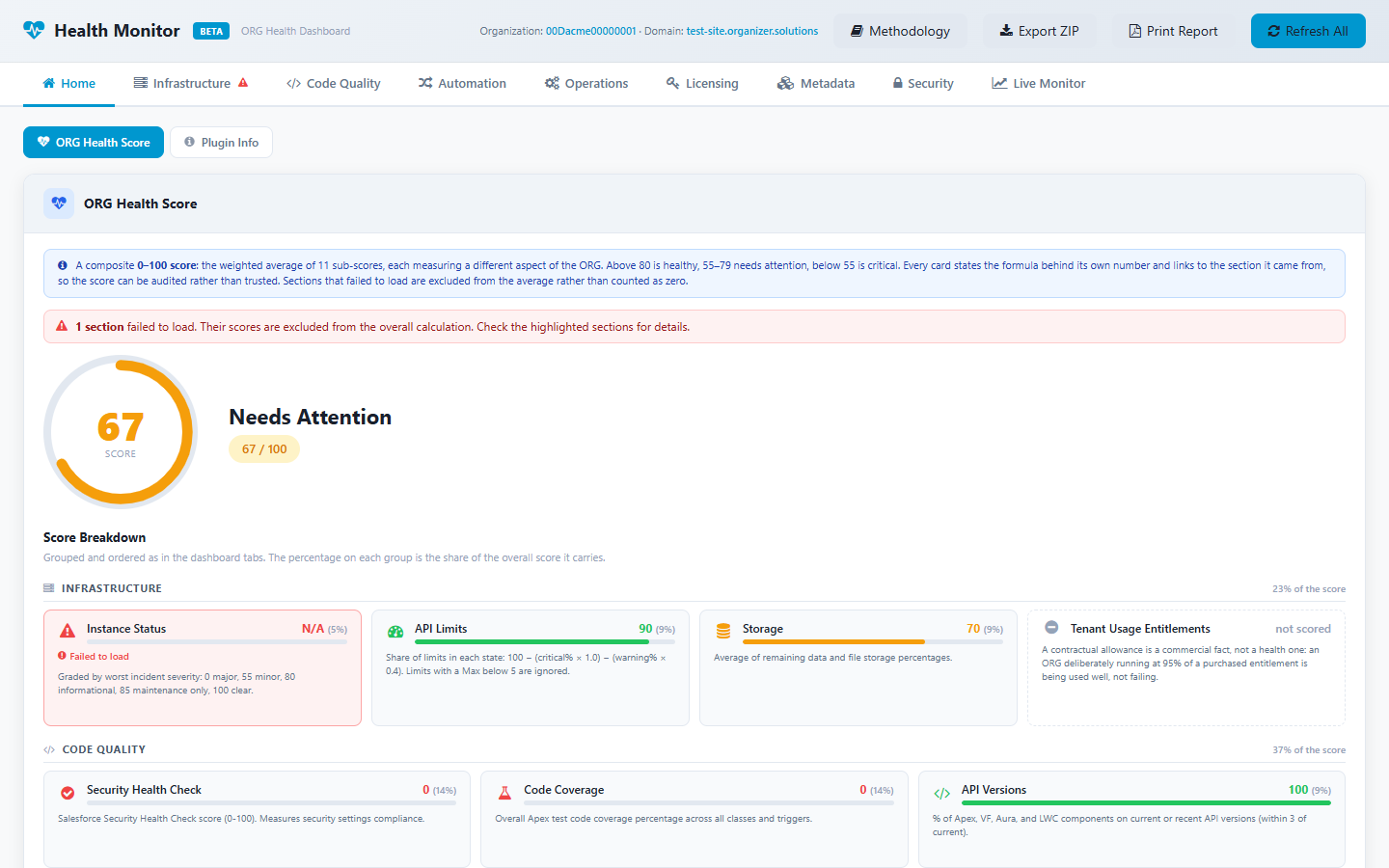
Live Monitor
Polls the ORG's limits endpoint on an interval and charts the result, so you can watch API consumption or async capacity while a data load or a deployment runs. Pick the metric, navigate the snapshots, hover the chart for exact values. It warns you before you close the tab while it holds data.
Exporting a report
- Print Report — a self-contained printable page with every section, its explanation, KPIs, charts and tables.
- Export ZIP — the same report as
report.html, plusmetadata.json, the methodology as Markdown, and the raw API responses per section underraw/. - Most sections also export their own table as CSV.
Neither export queries the ORG: they describe what is already on screen, and both refuse to run before the first analysis rather than producing empty sections.
API cost
A full run is a real number of API calls against your ORG's daily allowance — the start overlay states the estimate before you commit. Sections run three at a time, large tables are virtualised, and a section that a particular ORG cannot answer degrades to a “not available in this ORG” note instead of failing the whole run.
Access Lens new in 1.0
Access Lens answers two questions Salesforce makes surprisingly hard: what can this user actually do? and where does that access come from? Open it from the ORGanizer button or from the Access Lens action next to a live ORG in the popup.
Effective access
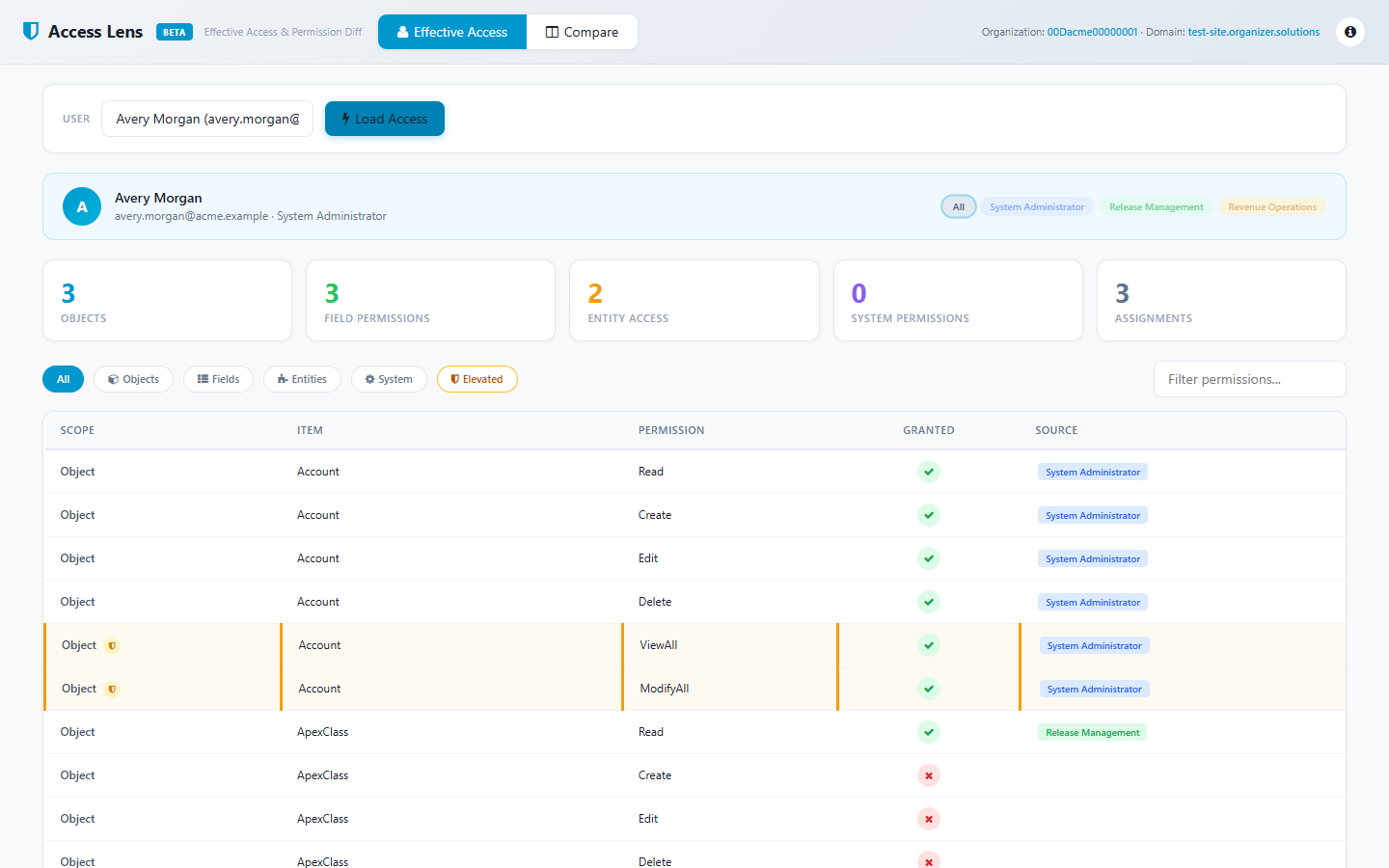
Search for any active user and get their combined effective permissions, OR-merged across their profile, permission sets and permission set groups:
- Object permissions — Read, Create, Edit, Delete, View All, Modify All, per object
- Field permissions — Read and Edit, per field
- Entity access — Apex classes, Visualforce pages, connected apps and the other setup entities
- System permissions — every system permission the ORG defines, discovered from the object describe rather than a hardcoded list, so a new Salesforce release does not leave a gap
Every row shows which assignments grant it, tracked per individual permission rather than per object — so you can see that Read comes from the profile while Delete comes from one specific permission set. Sources are colour-coded by type (profile, permission set, permission set group, muted) and the assignment tags above the table are clickable filters: click one to see only what it grants.
Elevated access
Security-sensitive permissions are highlighted automatically — an amber row, a shield badge
and an Elevated filter chip. That covers ModifyAllData,
ViewAllData, ManageUsers, AuthorApex,
CustomizeApplication, ManageProfilesPermissionsets,
ManageSandboxes, ResetPasswords, AssignPermissionSets and
around two dozen more, plus View All and Modify All at the object
level.
Compare mode
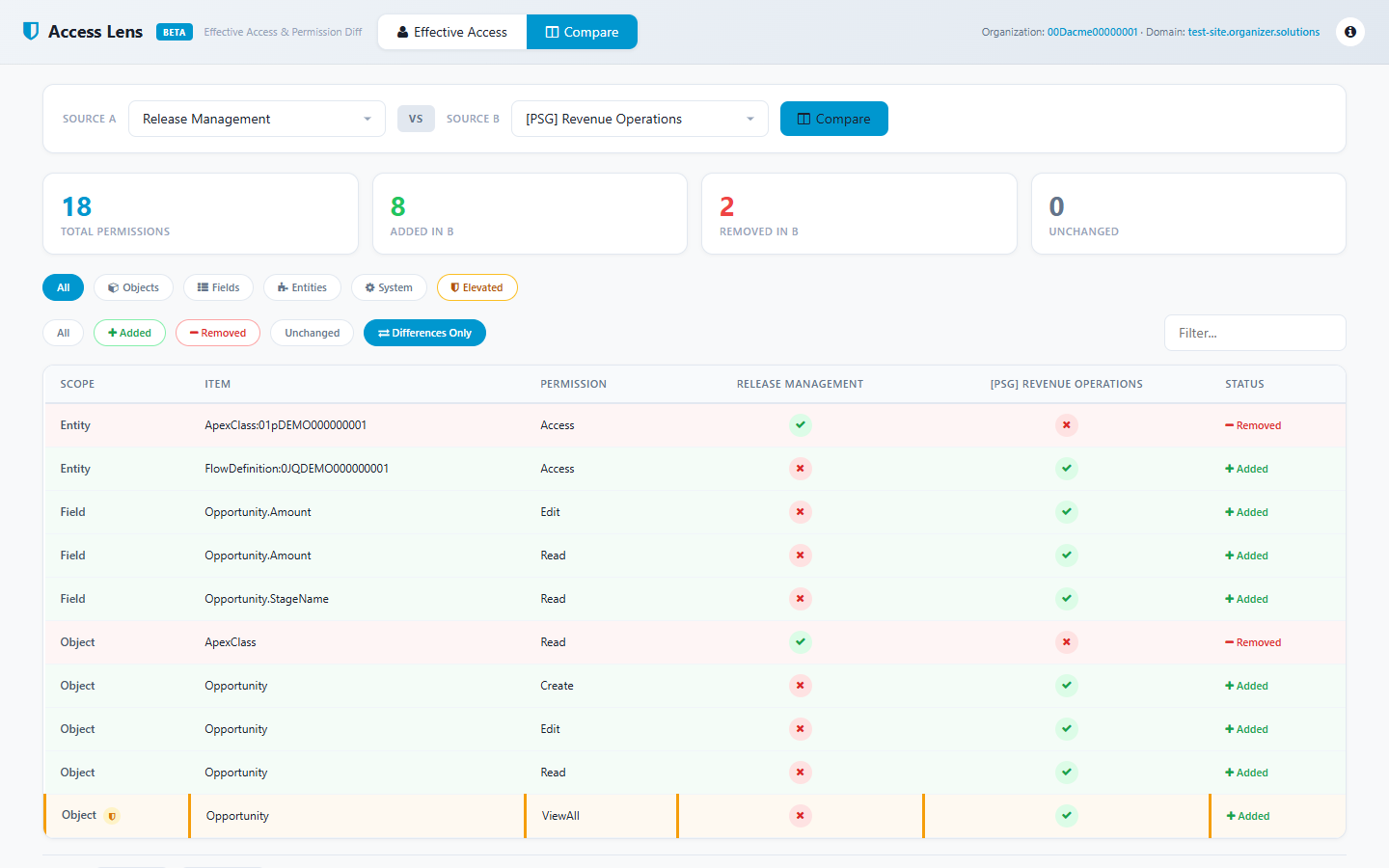
Pick any two permission sets, profiles or permission set groups and get a side-by-side diff: Added, Removed, Unchanged, or just the Diff. Scope (objects, fields, entities, system) and status filter independently, which is what makes a real comparison of two large profiles readable.
Export
Results export to CSV or JSON — for an access review, a compliance pack, or a diff you want to run somewhere else.
Change Set Helper
Salesforce gives outbound change sets almost no API surface, so the tedious parts — finding components, removing them one by one, rebuilding the same set of components for every release — stay manual. The Change Set Helper automates what can be automated from the page itself.
This plugin drives the Salesforce UI rather than an API, so it comes with limits. Please report anything that misbehaves. Enable or disable it in the Options page.
Working with a change set
Open an outbound change set. The helper attaches itself to the page:
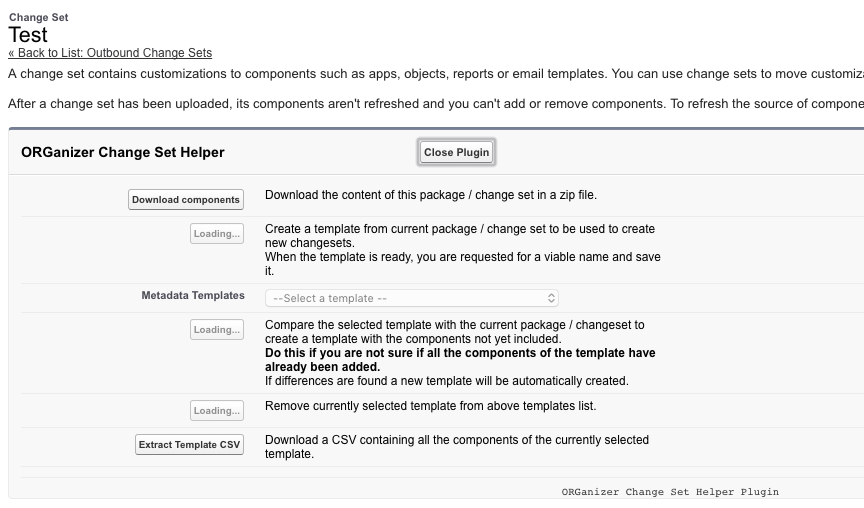
Download components retrieves a ZIP of the components in the package. It works when there is only one outbound component with a given name.
Templates
A template is a reusable model of a change set: something you can import into another change set, browse, refine, or use to remove components from the current one.
Create Template walks the component table page by page, collecting every definition — on a change set with hundreds of components this takes a while. When it is done, name it and hit Save Template.

The Metadata Templates picklist lists everything you saved:
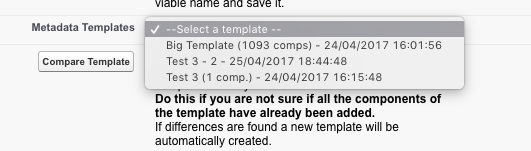
Because it is not obvious whether a component can be added, Compare Template walks the current change set looking for matches with the selected template. If part of the template is already there, you are asked to create a “subset” template holding only what is missing — which is what can be imported safely.
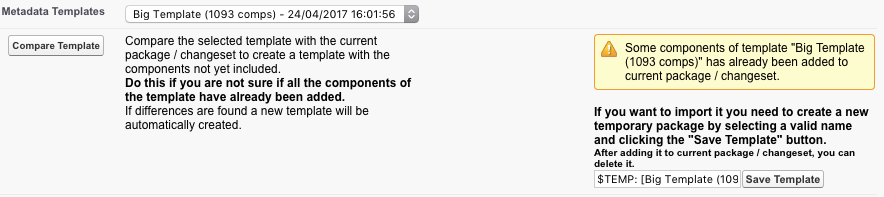
Remove Template deletes one from the list; Extract Template CSV downloads the current template as CSV (useful to attach to a bug report).
Selecting a template shows its components:
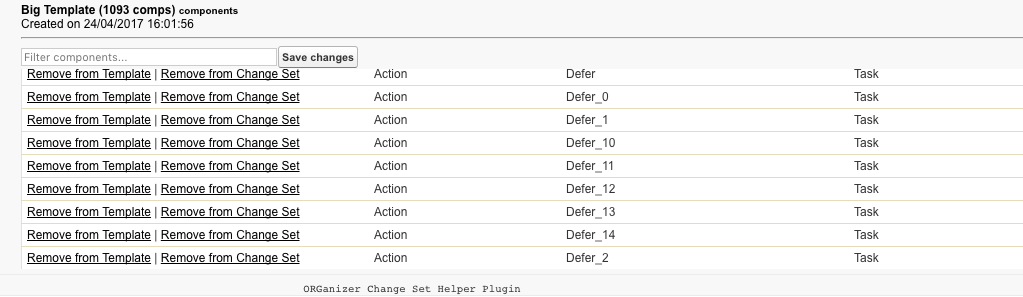
From here you can filter, and use Remove from Template to prune it, or Remove from Change Set to take a component out of the change set itself — which is close to instant in the current version.
The plugin works with packages too, but packages often list components that cannot go into a change set at all (typically components from managed packages), so a template built from a package may not import cleanly — and vice versa. At the time of writing, Person Account record types are the one known metadata type that cannot be added through a template.
On the Add page
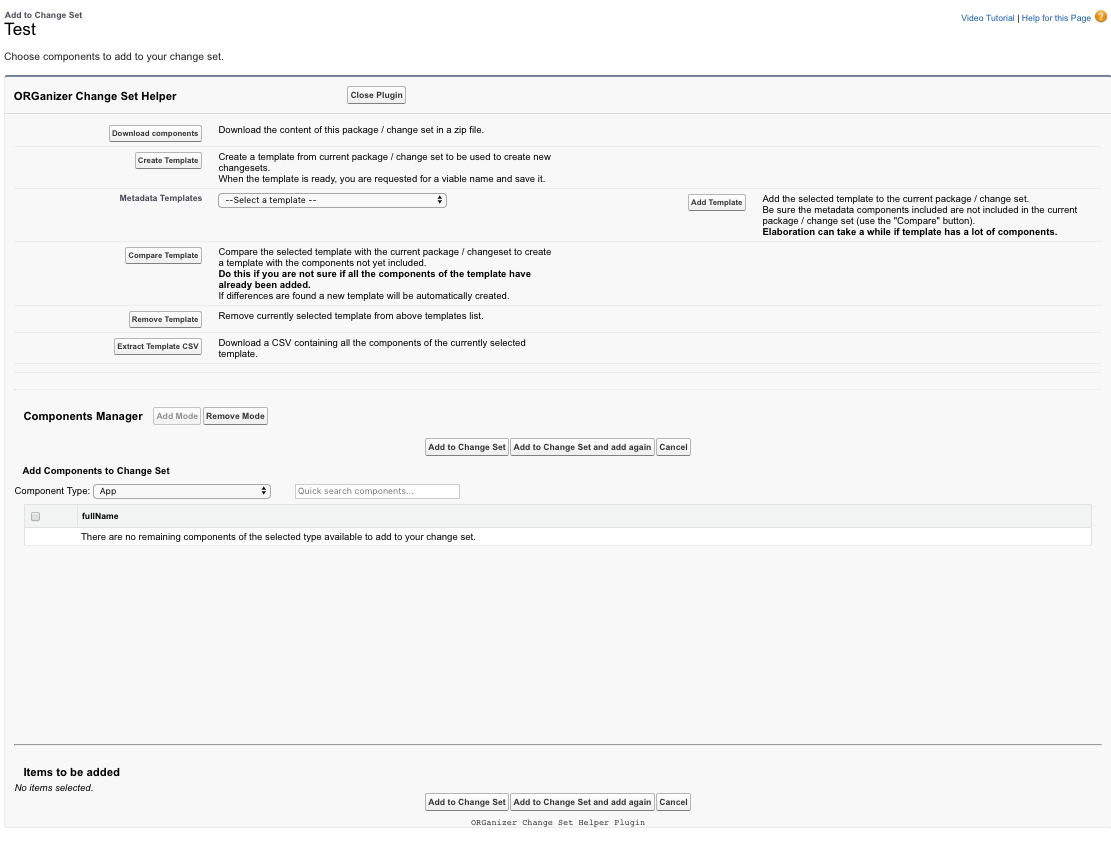
Add Template inserts the current template. If everything can be inserted, the components are added and you are taken back to the change set. If some cannot (Person Account record types, untested types), a CSV of the leftovers downloads automatically so you know exactly what to add by hand — and you then press Add to Change Set yourself.
Since V2 you can also search across component types without leaving the page:
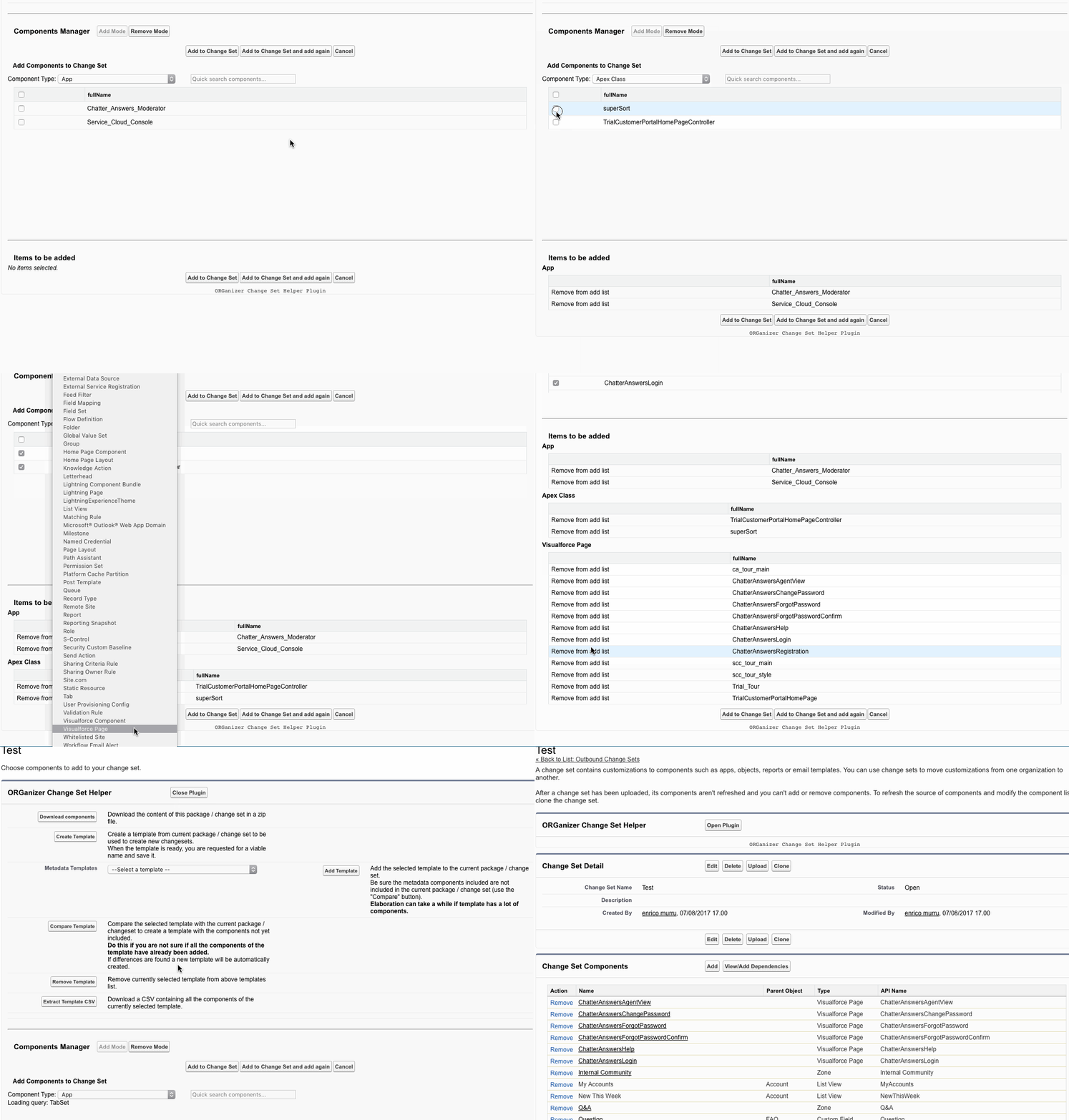
In Add Mode you can drop selected components on the fly, then push Add to changeset once for the whole batch. Remove Mode removes components quickly, searching by component type.
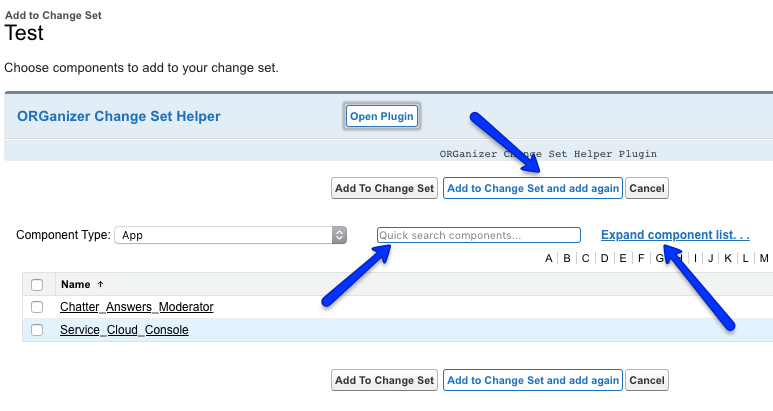
When the helper is not in open mode, it still adds three things to the standard page — see Hidden features: a quick filter, an expand the list link (up to the maximum Salesforce allows) and an Add to Change Set and add again button.
Remember what this is: not a change set manager — there is no API for that — but a helper that automates the parts you would otherwise do by hand.
Profiles Chamber
Profiles Chamber is for mass profile management. It opens as its own page, using the session of the ORG you launched it from — reach it from the ORGanizer button.
The setting it manages today is Login Hours, across as many profiles as you like at once:
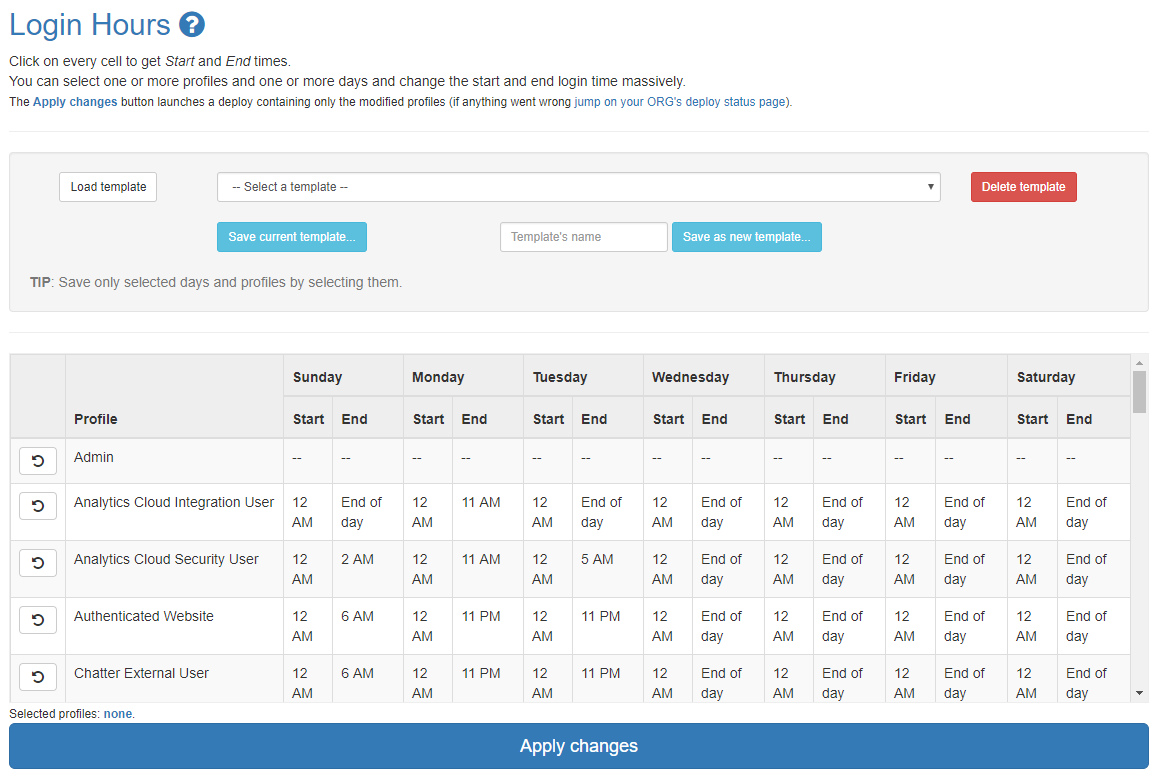
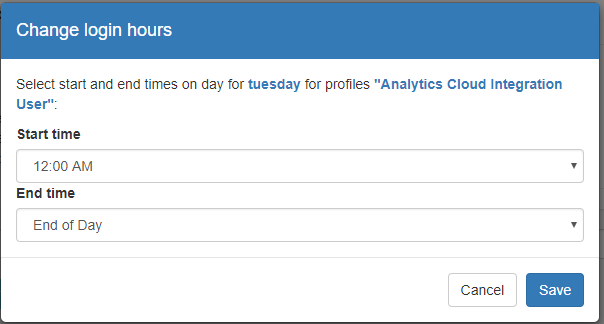
Double-click a day cell to change a single day on a single profile:
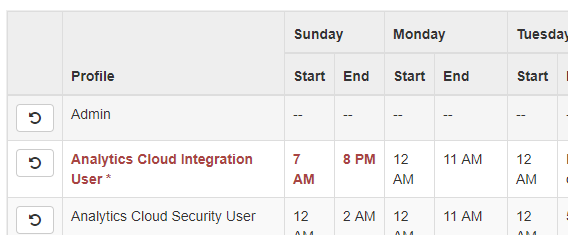
Changed cells are marked in red until you apply them; Undo resets the profile:
Select several profiles and days to apply the same login hours to all of them:
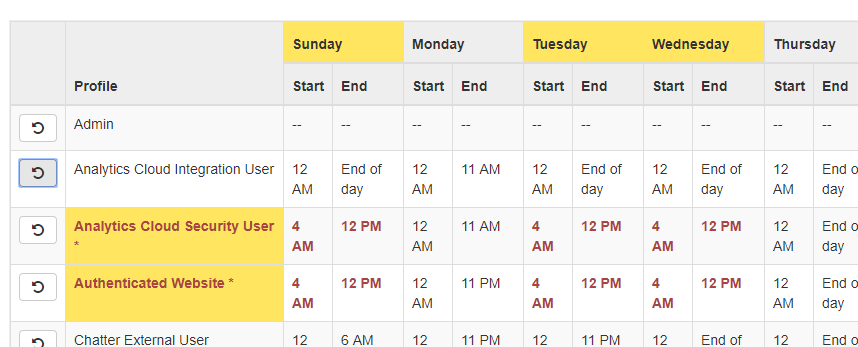
Apply Changes triggers a real metadata deploy of the changed profiles
— login hours only, nothing else on the profile is touched. It can take a while. If
something goes wrong, check the deployment status in your ORG at
/changemgmt/monitorDeployment.apexp.
The template section lets you:
- load a saved template (templates are per ORG);
- remove one from local storage;
- save over the current template;
- save the current configuration as a new, named template.
You can restrict a template to specific profiles and days before saving it.
Field History Helper 2.0 rebuilt in 1.0
Salesforce lets you track a limited number of fields per object, and then tells you nothing about which ones are worth tracking. The Field History Helper attaches to Object Manager → <Object> → Set History Tracking and answers the three questions you actually have in front of those checkboxes:
- Is this field used at all? — on how many records it is filled in, and how many different values it holds;
- Does it actually change? — how many history entries it recorded in the period you pick, by how many people, and when the last one was;
- Is there room for another one? — how much of the per-object tracking limit is already spent.
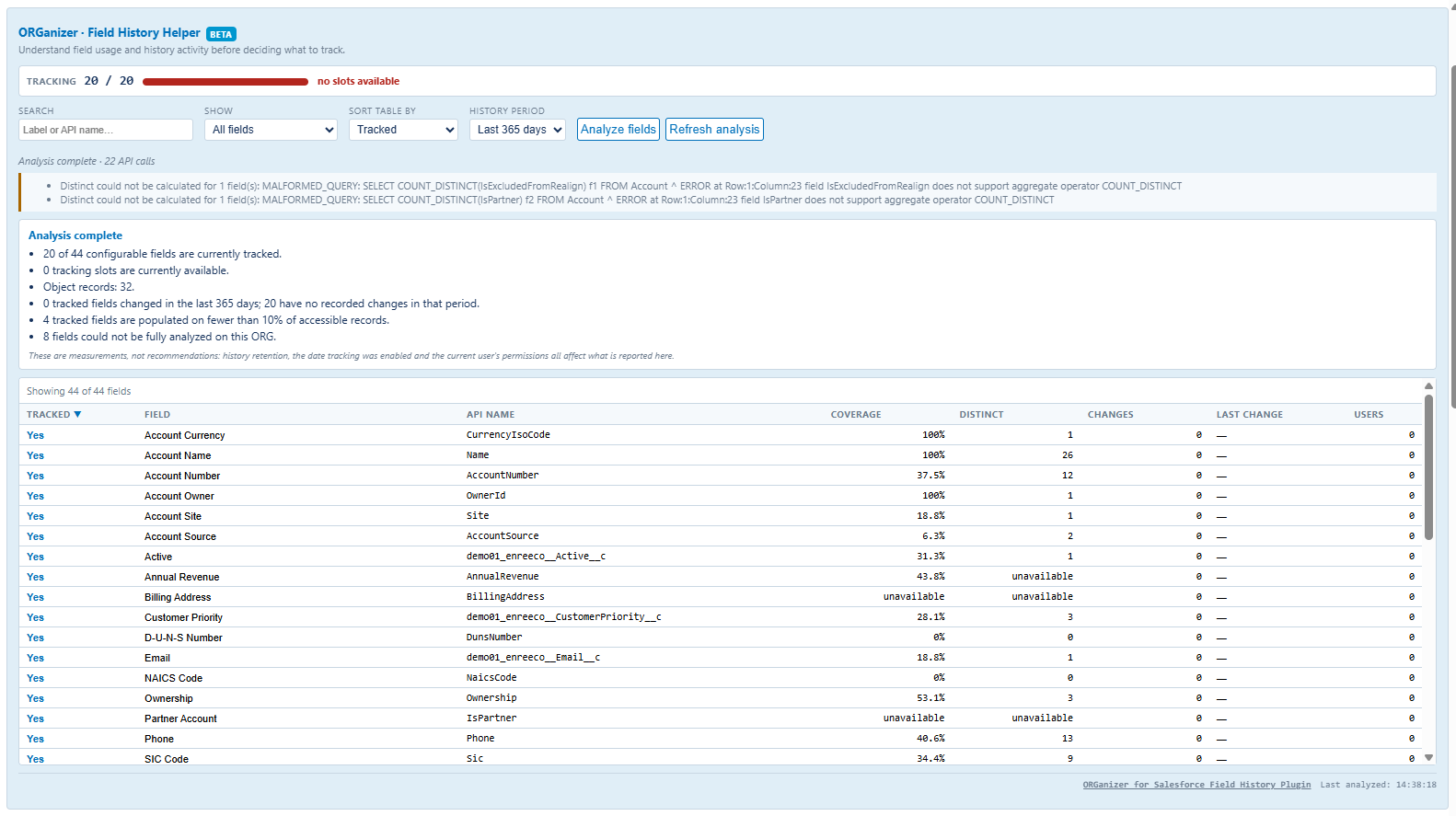
The panel
The helper adds a page block of its own above the tracking page, so the native Save and Cancel flow is untouched. Nothing is queried when the page loads: the slot meter renders immediately and follows the checkboxes live, and the ORG is asked only when you press Analyze fields. Refresh analysis runs it again without reloading the page.
- Tracking slots — how many fields are ticked against the per-object limit, and how many slots are left. No API this extension can reach reports the real limit, so the default of 20 is an assumption: the meter says so in its tooltip, and raises itself if the object turns out to allow more.
- Search matches the label and the API name.
- Filters — tracked, not tracked, no changes in the period, coverage below 25%, analysis unavailable. Search and filters hide fields on the Salesforce page itself, without shifting the columns around them.
- A sortable results table inside the panel, which never reorders the Salesforce page: filter to the tracked fields, sort by changes ascending and read the quiet ones off the top of the table, while the configuration page you are about to save stays exactly as it was.
- History period — the last 30, 90 or 365 days.
Every field on the page also carries its API name and its own metrics next to the checkbox. The period, the filter and the sort you leave the panel in are remembered for the next time.
What it measures
| Metric | What it says |
|---|---|
| Coverage | the share of records where the field is filled in, counted over the whole object you can see — not over a sample |
| Distinct | how many different values the field holds. One distinct value across a million records is a field nobody edits |
| Changes | how many entries the object's history table recorded for that field in the selected period, and how many different users made them |
| Last change | when the most recent of those entries was written |
An untracked field that still has history rows is shown with its count and a not tracked now chip — a fact read off the history table, not a guess about what happened before.
What changed in 2.0
The previous helper downloaded the most recent 1,000 records of the object and derived two percentages from them, and it never looked at the field history at all — so it could not answer the one question that page is about. 2.0 asks the ORG for exact numbers instead, and downloads no record:
| Before | 2.0 | |
|---|---|---|
| Coverage | share of the last 1,000 records | counted over the whole object |
| Diversity | a percentage labelled “Variance”, which was neither a variance nor a frequency | the number of distinct values |
| Change activity | not measured at all | the object's history table, grouped by field, over 30 / 90 / 365 days |
| Cost | a full page of records per ~40 fields | about a dozen aggregate queries for a 200-field object, whatever its size |
| Running it again | needed a page reload | Refresh analysis |
| When a field is refused | a pop-up, and the analysis was over | that one field is marked, every other field keeps its numbers |
What it costs, and what it keeps
One run is roughly a dozen aggregate queries for a 200-field object, and the number does not grow with the size of the object: no record is ever downloaded. The queries run against the Salesforce session you are already logged in with, everything is computed in the browser, and nothing is sent anywhere. Only the shape of the view — the period, the filter, the sort — is stored locally; no metric and no record value is.
Reading the numbers
The helper reports, it does not advise: it will not tell you to stop tracking a field. The numbers are facts about the ORG, the decision is yours. Colour carries a meaning only on the slot meter, where the text says the same thing anyway.
- Zero changes reads as no history changes found in the selected period, and it means exactly that: the window you picked, your ORG's history retention, the date tracking was switched on and your own permissions all feed that number.
- An object with no records shows an em dash rather than
0%— nothing to measure is not the same as everything empty. - A field your permissions hide, or one the ORG cannot aggregate (compound, encrypted, and the like), is reported as analysis unavailable with the reason, instead of being counted as zero. The rest of the analysis carries on around it.
- An object without a history table gets no change activity, while coverage and distinct values are still reported.
- Person Account fields (
__pc) are deliberately left out: whether each of them can be aggregated on every ORG has never been verified, and counting them as zero would be worse than saying nothing.
Enable or disable the feature in the Options page.
Notifications
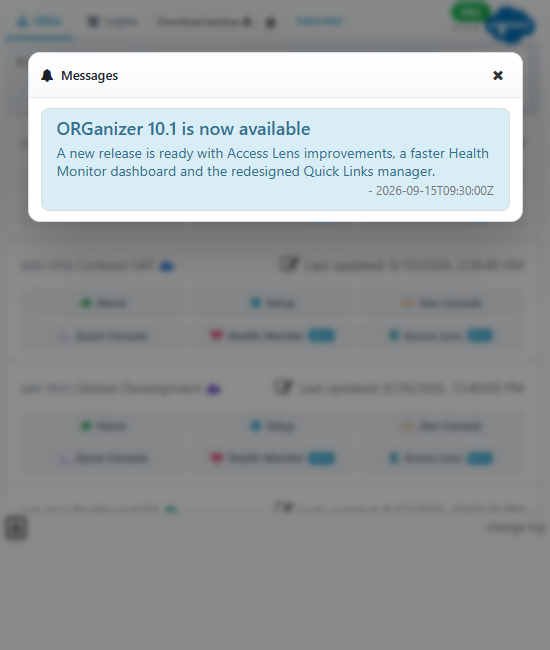
The popup carries a bell for messages from the extension author — release notes, surveys, the occasional promotion. A dot on the bell means there is something you have not read; opening the panel clears it.
Removed in 1.0
The blinking question mark that announced a new version is gone, along with the version tracking behind it. The change log is still one click away from the popup — it just no longer nags. The in-popup Salesforce News tab was removed too.
Options page
The Options page is where everything is configured. Reach it from your browser's extension settings, from the Options button in the popup header, or from the ORGanizer button on any Salesforce page.
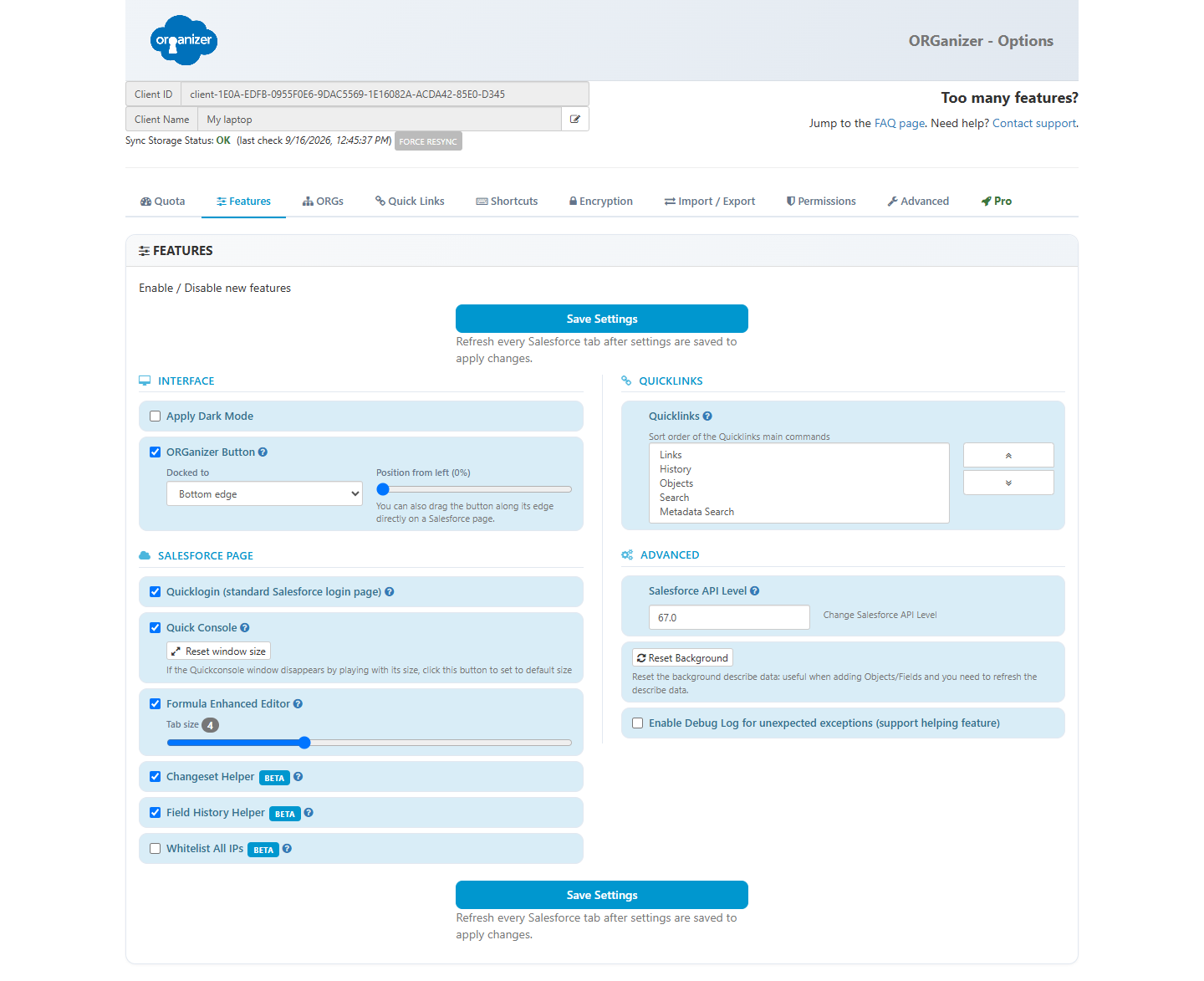
Features
Turn the content features on and off, in two groups.
Interface
Dark mode for the extension's own pages, and the ORGanizer button: whether to show it, which of the four page edges it docks to, and where along that edge it sits.
Salesforce page
Quick Login, Quick Console, Enhanced Formula, Change Set Helper, Field History Helper and the Whitelist all IPs plugin.
Developer
The debug log — worth enabling before reporting a bug, so the Error log download carries something useful.
Shortcuts
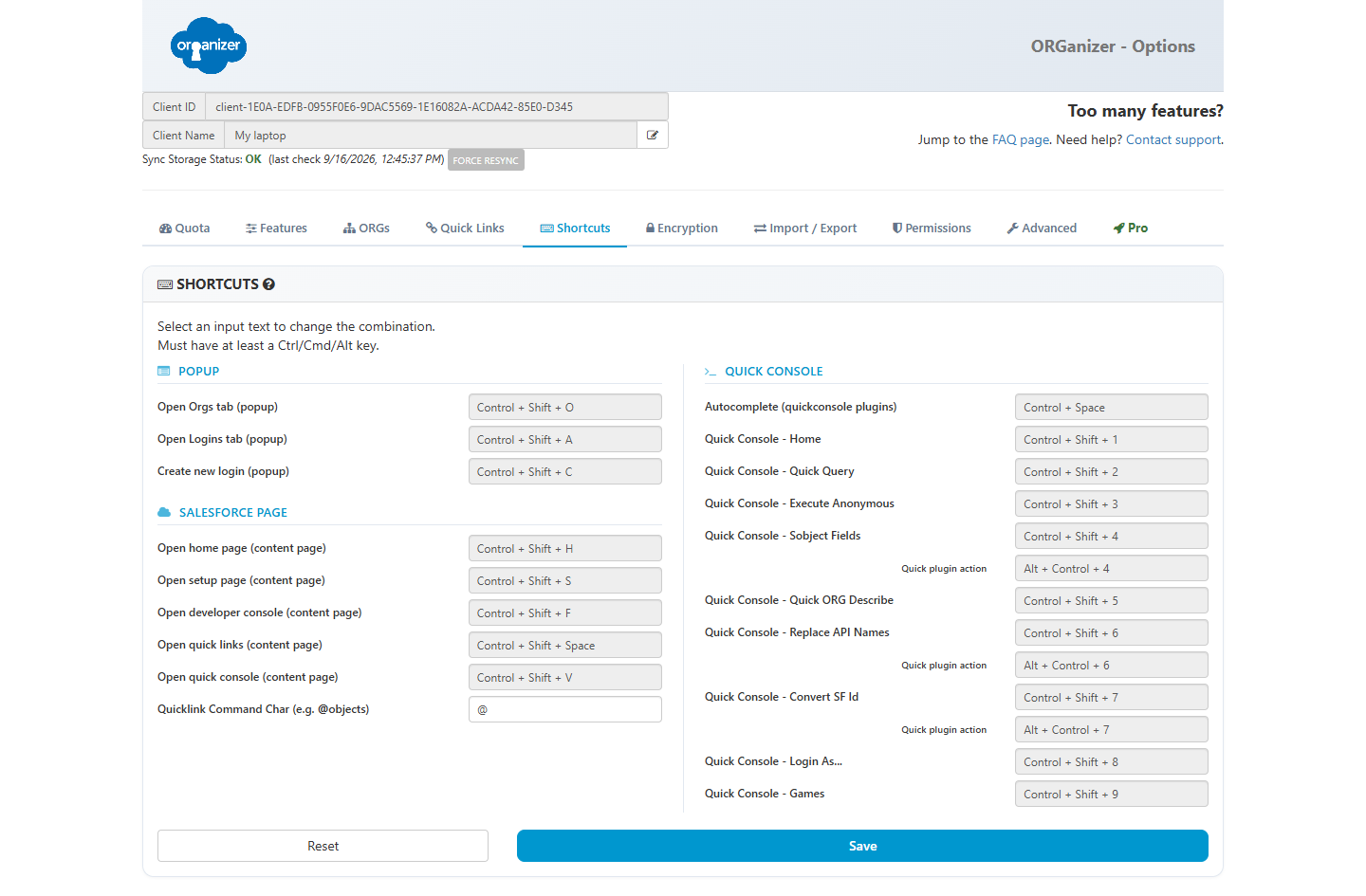
Every in-page shortcut is rebindable here: the popup tabs, the tab actions, Quick Links, the Quick Console and each of its plugins, the plugin quick actions, and the autocomplete key. The browser-level shortcut that opens the popup is set in the browser, not here.
ORGs and Quick Links
New tabs in 1.0
Both lists moved out of the popup and into their own Options tabs, each with a filter box, an editor modal and bulk delete. See ORGs and Quick Links.
Permissions
The Salesforce domains you have granted, grouped by My Domain, each revocable on its own — plus a way to grant one before you first visit it. See Domain permissions.
Encryption
Turn encryption on or off and change your master password. The scheme was rebuilt in 1.0 — see Encryption for what it does and how to migrate an existing vault.
Sync and local quota
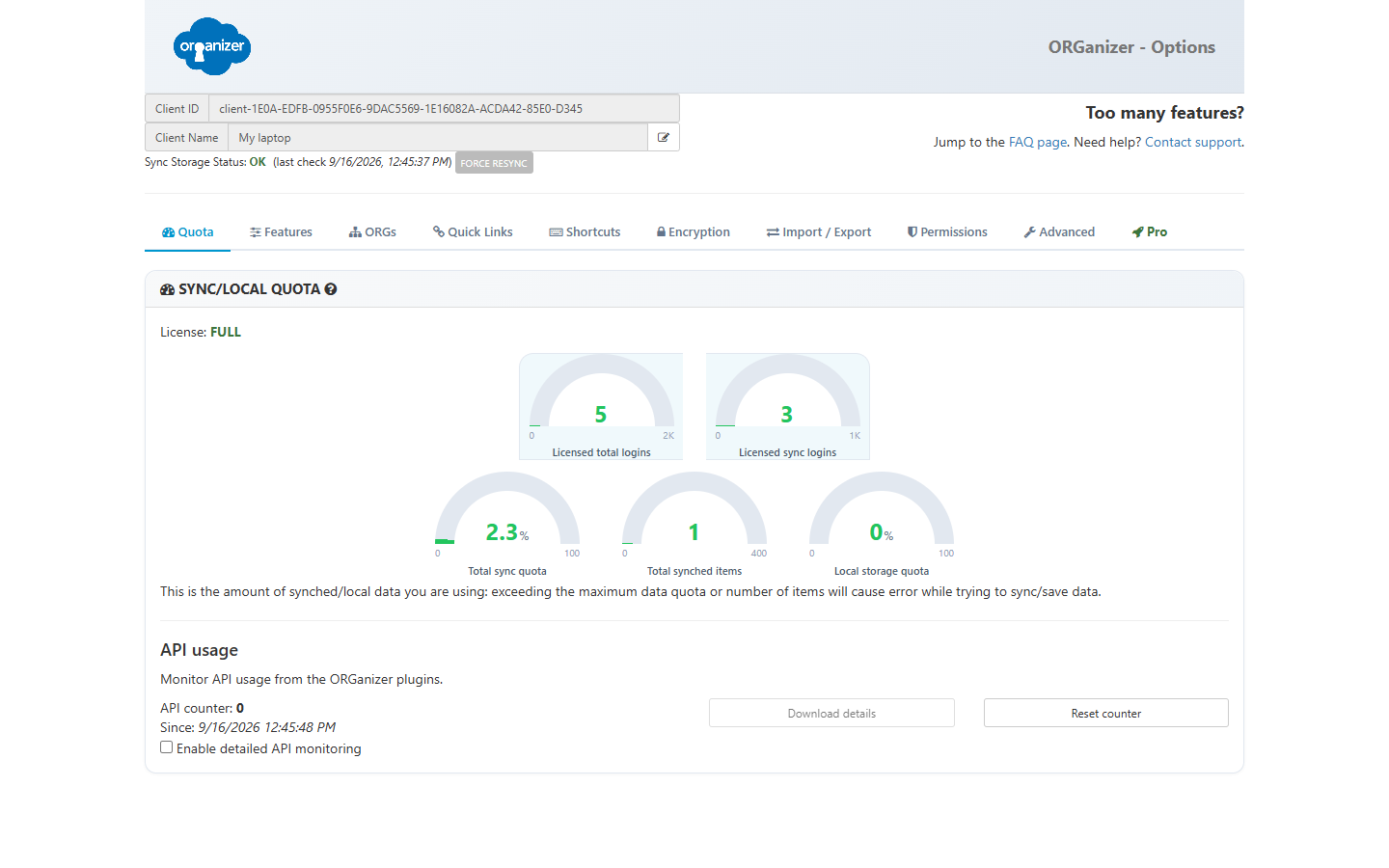
Total sync quota · Total synced items
Hard browser limits. Once either is reached, the extension stops being able to save anything.
Licensed total logins
How many logins your license lets you keep locally, synced or not.
Licensed sync logins
How many of those may be kept in sync storage.
API usage
API calls made by the extension since the counter was last reset — useful when running the Health Monitor against an ORG with a tight allowance. Reset counter puts it back to zero, and Enable detailed API monitoring breaks the total down per plugin, downloadable as a file.
Import / Export
Export everything — logins (synced or not), ORG configurations, quick links, V.I.Q.s and V.I.S.s — and import it back somewhere else. A login carries its Login email and Description through the file as well.
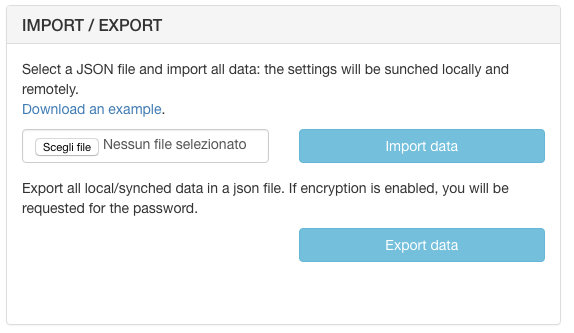
With encryption enabled, exporting asks for your master password — the file is written in the clear, so treat it as a copy of your credential vault. Always take an export before importing over your data.
The file looks like this:
{
  "accounts": [
    {
      "g":  "Group name",
      "n":  "Login label",
      "u":  "[email protected]",
      "p":  "password (in clear)",
      "e":  "[email protected]",
      "ds": "A note about this login",
      "r":  "https://login.salesforce.com",
      "s":  true,
      "lt": false,
      "lo": false,
      "lp": "/apex/MyCustomPage",
      "t":  "SECURITY_TOKEN",
      "f":  true
    }
  ],
  "orgs": [
    {
      "oid": "00D0000000000AA",
      "n":   "MYDOMAIN",
      "l":   "Tab label",
      "c":   "#ff0000"
    }
  ],
  "global_quicklinks": [
    { "l": "Deployment Status", "p": "/changemgmt/monitorDeployment.apexp", "orgs": [] },
    { "l": "Acme wizard",       "p": "/apex/AcmeWizard", "orgs": ["00D0000000000AA"] }
  ],
  "queries": [ { "name": "My first query",  "body": "SELECT Id FROM Account" } ],
  "scripts": [ { "name": "My first script", "body": "System.debug('Hello');" } ]
}
accounts
g group name (Default if unset) ·
n label ·
u username ·
p password (required unless lo is true) ·
e new login email, which is what
offers the login on Salesforce's email-based login flow ·
ds new free-text description ·
r login URL ·
s keep in sync ·
lt log in with token ·
lo log in with OAuth ·
lp landing page ·
t security token ·
f starred.
orgs
oid 15-character ORG Id ·
n My Domain prefix in uppercase (or the legacy instance name) ·
l tab label ·
c favicon colour as #rrggbb.
global_quicklinks new
l label ·
p URL or relative path ·
orgs the ORG Ids it belongs to; empty or missing means the link is
global. Legacy per-ORG links under an ORG's ql node are
still read on import and folded into this list.
queries · scripts
Your V.I.Q.s and V.I.S.s, each a name and a body.
Advanced
Automatic backups
A backup is taken every time a login or ORG configuration changes and the extension re-syncs. Set how many to keep (10 by default) and download any of them from the list. Backups are local to this browser, and they are re-encrypted whenever you change your master password.
Error log
Download the log to attach to a support request. Enable the debug log in the Features tab first for it to be worth much.
Hard reset
Wipe local data, or local and synced data. This is the way out if you have forgotten your master password and want to start over — there is no other way back in.
Removed in 1.0
Google Drive backup and the Google sign-in behind it, the ORGanizer Connector panel and backup key, the separate Backup V.I.Q. & V.I.S. button, and Timed Password Sessions. Local automatic backups and the Import / Export file are unaffected.
Pro licensing
Every feature of ORGanizer for Salesforce is free to use. What a PRO license changes is the number of logins you can store and sync, and whether you see advertisements — in the extension's pages, in the Quick Console, and as an occasional message after a number of actions.
To get one: press GET A LICENSE, or go to gumroad.com/organizer, pick a subscription and complete the purchase. The license code arrives with the confirmation email; apply it with the Apply promo code button.
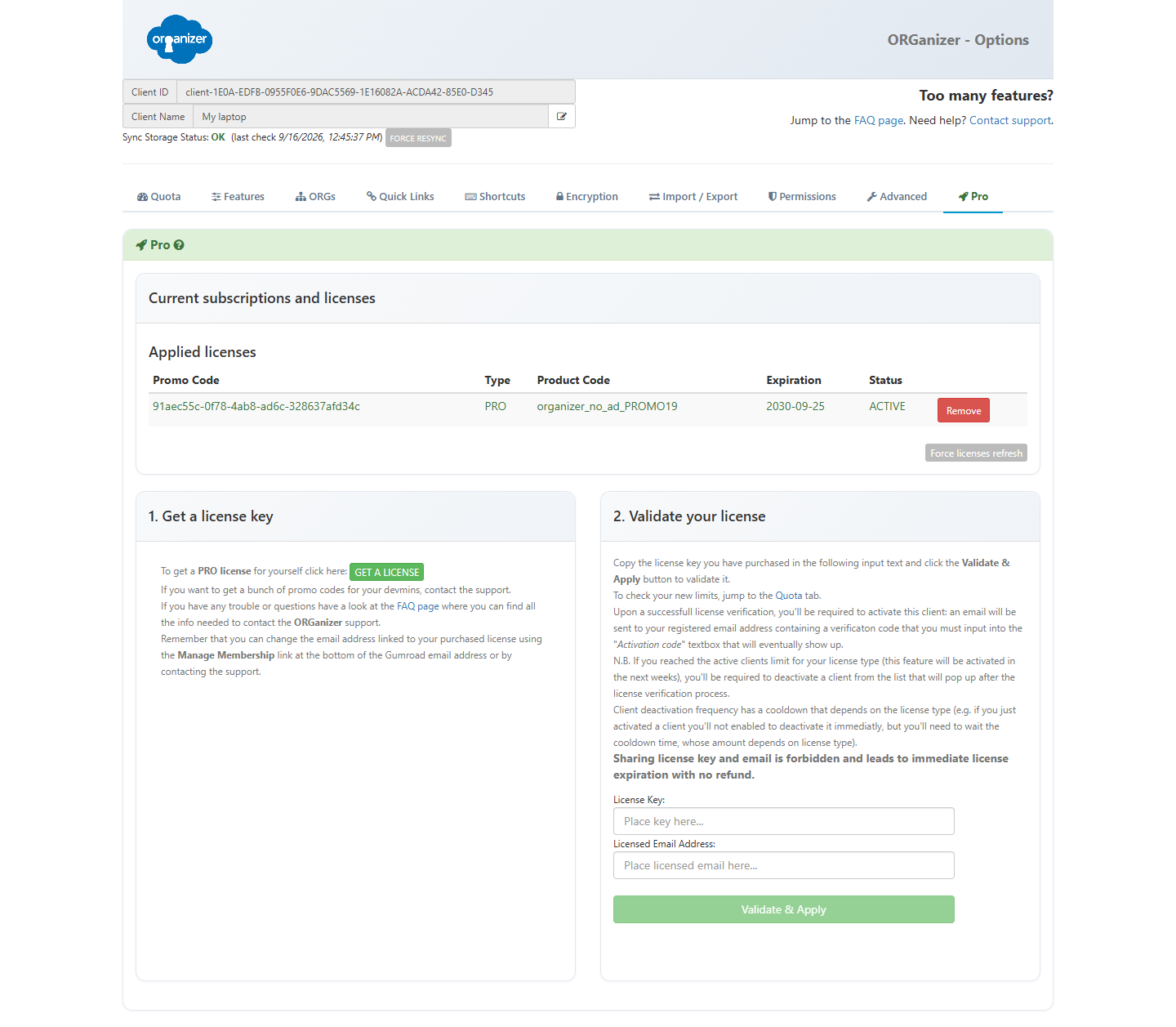
For a wrong purchase, or anything else about payments, use the support form.
Bulk promo codes
Bulk promo codes deliver the Pro features to a company buying a number of licenses at once, or as a trial coupon. A promo code is bound to one email address and has an expiration date — it is not a subscription, and it stops working on that date. Child codes are handed out and revoked from the bulk license management page. Contact support if you are interested in buying them.
Licenses
Your license sets the storage limits shown in the Options page. Every feature works on every plan; what changes is how many logins you can keep, how many of them sync, and whether you see ads.
| License | Total logins | Synced logins | Ads |
|---|---|---|---|
| Free | 20 | 5 | Yes |
| PRO | 2000 | 1000 | No |
| PRO Team | 2000 | 1000 | No |
The old Lite tier is being discontinued: there is now one PRO license for individuals. Existing Lite subscribers are upgraded to it automatically, with no change to their subscription.
The full comparison, the number of active clients per license and current prices are on the pricing page. Bulk licenses are administered from the bulk license management page.